WAF Recommendations
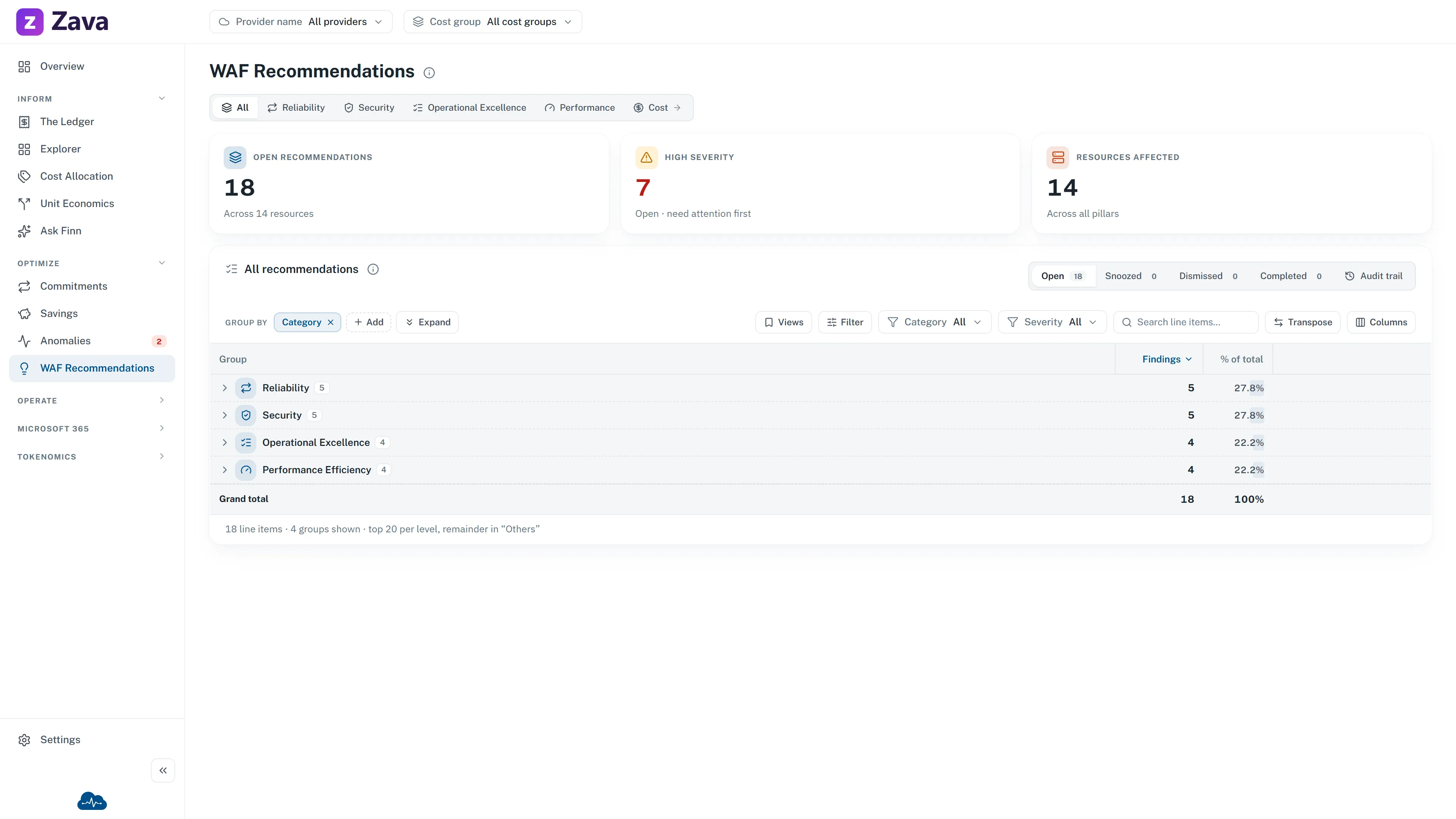
Cost isn’t the only way a cloud estate can be badly built. WAF Recommendations covers the rest: findings against Microsoft’s Well-Architected Framework, which is the industry checklist for whether something is built properly.
CloudMonitor is a cost tool, so why is this here? Because the same estate produces both, and the cheapest resource in the world is no bargain if it loses your data.
The pillars
Section titled “The pillars”| Pillar | What it looks for |
|---|---|
| Reliability | Redundancy, backups, failover and resiliency gaps |
| Security | Exposure, identity, encryption and Defender findings |
| Operational Excellence | Monitoring, automation, tagging and deployment hygiene |
| Performance Efficiency | Scaling, SKU fit and throughput bottlenecks |
The default is All recommendations across every pillar on the Open status tab; each pillar has its own selector.
There’s a fifth pillar, cost optimization, and it isn’t here. Selecting it takes you to Savings & Waste: Cost Optimization. Opens the Savings page under Optimize. One list of cost actions rather than two.
The numbers
Section titled “The numbers”Open recommendations across however many resources, High severity as the subset needing attention first, and Resources affected counting distinct resources: one resource with several findings counts once.
Unlike Savings & Waste, there’s no money figure. The measure is a count of findings, because “unencrypted storage account” doesn’t have a price attached. Cost basis therefore does not appear on this screen.
Working through them
Section titled “Working through them”Identical triage to the other finding screens: Assign to a cost-group member with an optional comment, Snooze, Dismiss with a reason, and Reopen from the Snoozed or Dismissed tabs. Rows always offer View history. They can also offer Open resource in Azure, Open Azure Advisor recommendation and Go to cost group when those destinations resolve.
Anyone in the relevant cost group can triage. Other readers still get the available read-only links. Nothing is marked complete by hand: a finding closes when the underlying issue is actually fixed and the next assessment stops detecting it.
Use Open, Snoozed, Dismissed and Completed to move between worklists. Audit trail shows triage actions across the pillars and Savings for the cost groups you can see.
Filters
Section titled “Filters”Provider and cost group apply to the KPIs, status counts and list, matched through the affected resource. WAF findings are Azure-sourced today, so Microsoft is the only provider that matches.
Period, Tags and cost basis are hidden. These findings are current rather than a spend time series, carry no tags, and have no dollar measure.
Using it well
Section titled “Using it well”Some suggestions.
Sort by severity and work the top. The list is long by nature; a full assessment of any real estate produces hundreds of findings, and treating it as a backlog to clear rather than a queue to triage is how it gets abandoned.
Filter to one cost group and assign it. Security and reliability fixes usually belong to the team that owns the resource rather than to whoever runs cost. Scoping the list and assigning the finding is faster than explaining it elsewhere.