Virtual Machines
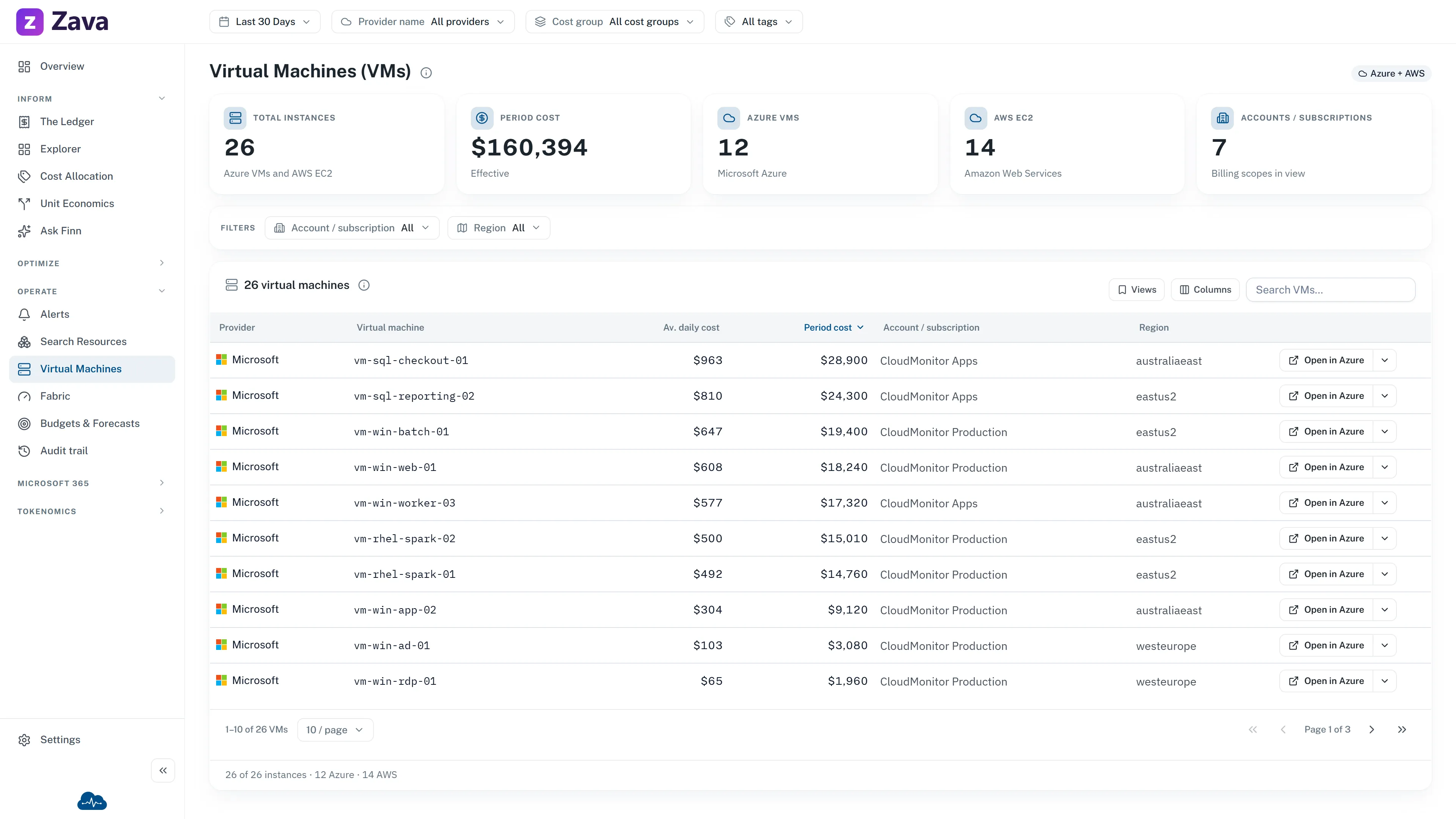
Virtual machines get their own report because they carry a cost lever nothing else does: licensing.
The app describes it as:
Azure virtual machines and AWS EC2 instances in one cost view. Provider-specific licensing, purchasing and optimization details appear when that cloud is selected.
Why licensing deserves a screen
Section titled “Why licensing deserves a screen”A Windows or SQL Server VM includes the license in its hourly rate unless you tell Azure you already own one. Azure Hybrid Benefit is the mechanism for saying so, and it can take a meaningful chunk off the rate.
The catch is that it has to be applied per VM. Nobody notices when it isn’t, because the machine works perfectly: it just costs more. Which makes it exactly the kind of thing worth a report rather than a spot check.
When VM inventory data is connected, this screen shows where the benefit is applied and where it isn’t across Linux, Windows and SQL. If only cost data is available, the page says that AHB and inventory details are not available yet; the cost columns remain live, but the AHB KPIs show zero and the AHB filters match nothing.
What’s in the table
Section titled “What’s in the table”The first view keeps the table lean: VM, average daily cost, period cost, resource group and subscription. Use the column picker to add size, cores, created date, operating system, AHB license and status, SQL image details, Cost group, Owner, Created by, Cost center, Region or Resource ID.
Total VMs counts the machines in the current filtered view. Its subtitle shows when that is a subset of the estate.
Sort by cost and read the license column down the top rows: that’s the fastest pass. An expensive Windows VM without the benefit applied is either an oversight or a decision nobody wrote down.
Created date earns its place too: a machine created years ago that nobody has touched since is worth asking about.
Providers and filters
Section titled “Providers and filters”The screen covers Azure virtual machines and AWS EC2 instances together, and the Provider filter applies. Selecting a cloud swaps in that provider’s licensing, purchasing and optimization columns: Hybrid Benefit is an Azure concept, so it is shown when Azure is in scope.
Period and cost basis drive the cost columns. Cost group and Tags also filter the VM rows through each machine’s Resource ID. The page’s own filters cover Linux, Windows and SQL AHB state, subscription and resource group, with a separate VM search.
Getting to a machine
Section titled “Getting to a machine”Each row’s split action offers Open in Azure portal, Find in Search Resources, and searches within its resource group or subscription. When a live row’s cost identity resolves, it also offers View on Ledger, which opens that exact context in The Ledger.
Use the Azure link to change something; use Search Resources when you want the wider context around it.
Related
Section titled “Related”Rightsizing recommendations for VMs live in Savings & Waste rather than here: this report is inventory and licensing, that one is what to do about it.