Microsoft 365
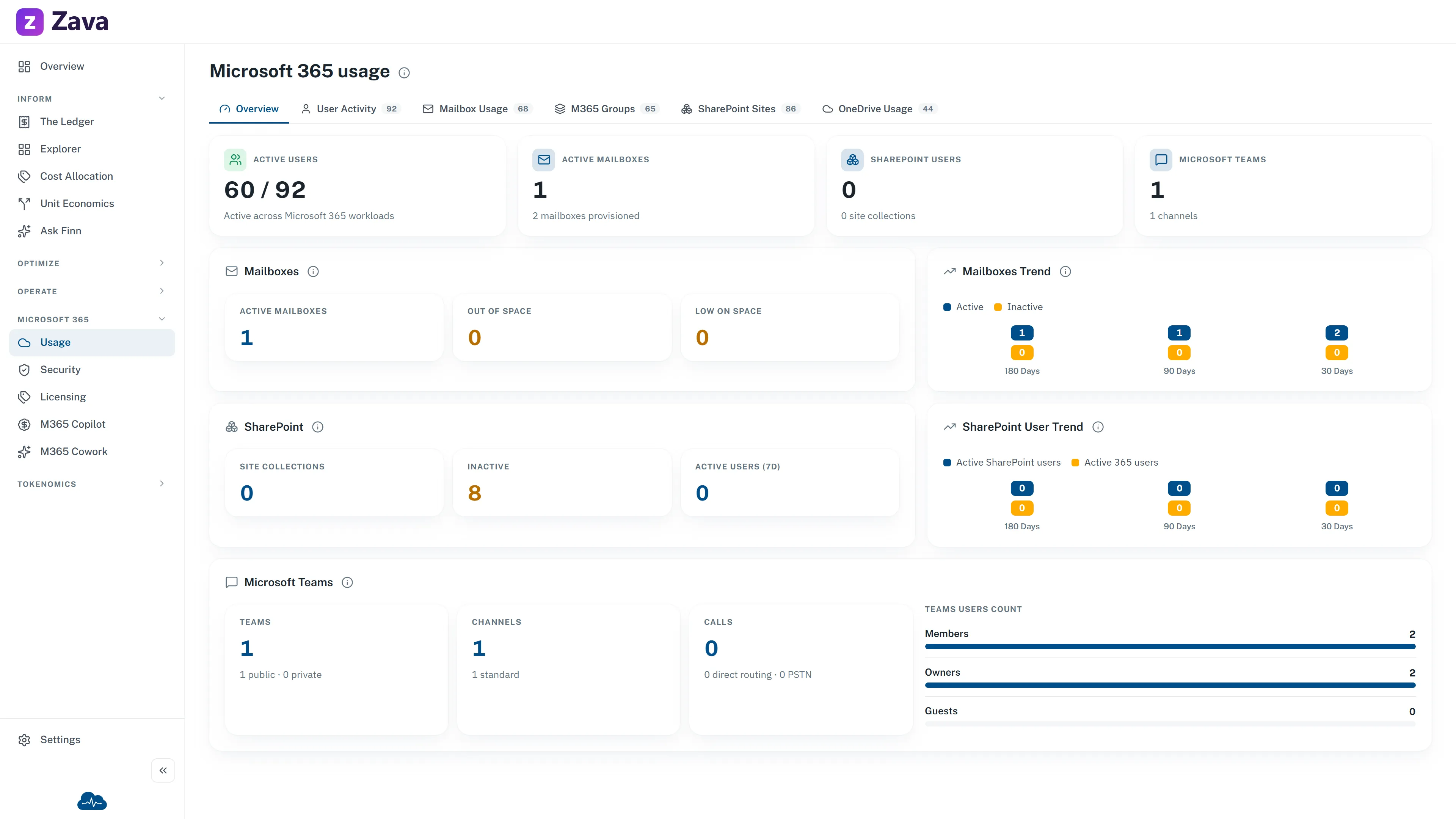
Microsoft 365 licensing is often the second-largest technology bill after cloud, and it’s usually managed somewhere else entirely. This screen brings it alongside your cloud spend.
You’ll find it in the Microsoft 365 menu section. Usage opens the tenant usage views, Security the tenant’s security posture and password expiration, and Licensing opens directly on Product Licenses. Each entry has its own relevant tabs inside the page, so the sidebar remains two levels deep.
Connecting it is a separate step. See how to connect Microsoft 365.
Usage tabs
Section titled “Usage tabs”| Tab | Answers |
|---|---|
| Overview | How much the tenant actually uses what it pays for |
| Mailbox Usage | Mailbox sizes and growth |
| SharePoint Sites | Site inventory and storage |
| OneDrive Usage | Per-user storage |
| M365 Groups | Groups and their membership |
| User Activity | Who is active, and who isn’t |
| Copilot usage | Who uses Microsoft 365 Copilot, how often, and in which apps |
Security tabs
Section titled “Security tabs”| Tab | Answers |
|---|---|
| Overview | Secure Score, how it is trending, and open security alerts |
| Password Expiration | (no data, see below) |
Licensing tabs
Section titled “Licensing tabs”| Tab | Answers |
|---|---|
| Product Licenses | What you own by product, and how much is assigned |
| License Spend | License charges where Microsoft 365 billing reaches your cost data |
| Users & Licenses | Who has which licenses |
The question worth asking first
Section titled “The question worth asking first”Assigned versus active. A license assigned to someone who hasn’t signed in for three months costs exactly the same as one in daily use.
Product Licenses plus User Activity is where that shows up, and it’s usually the fastest money on this screen. Unlike cloud rightsizing, reclaiming a license needs no change control and no risk assessment: someone just stops having it.
Copilot usage
Section titled “Copilot usage”Copilot usage ranks the people who hold a Microsoft 365 Copilot license by the prompts they submitted in the last 28 days. Each person shows their prompts, their active days, how long ago they last used Copilot and which Copilot apps they used. Filter to No activity to list licensed people who have not used Copilot, which are the seats to review before the next renewal. The Licensed, no activity tile opens Copilot seats to review on the Copilot license screen, which ranks those seats by how long ago each person last used Copilot and shows the evidence for each, in the Copilot license economics report.
The Seat column shows whether each person still holds a Copilot license, read from the license assignment data. Microsoft keeps listing a person in the usage report for up to 180 days after the license is removed, so people marked No seat stay in the table and are left out of the tiles. Copilot seats to review lists them under No seat now and never recommends them.
The report comes from Microsoft about three days behind and lists everyone who held a Copilot license in the last 180 days. If your tenant conceals user names in Microsoft 365 reports, people appear as a short id, and turning that setting off is your decision. The tab shows nothing until your workspace has received the report at least once.
Password expiration and license-cost coverage
Section titled “Password expiration and license-cost coverage”Password Expiration has no backing data source and remains unavailable.
License Spend uses existing cost data. It can show Microsoft 365 license charges when your Microsoft 365 billing reaches that data. Missing coverage is unavailable, not $0.
For M365 Copilot license inventory, selected-period net cost, refunds, monthly trend and mapped charge lines, use M365 Copilot License Economics under Microsoft 365 ▸ Copilot. It still requires the Tokenomics module.
Filters barely apply
Section titled “Filters barely apply”Only Licensing uses the cost basis, and even there it affects only license cost figures. Usage and Security contain no cost values, so the preference does not apply there.
Period, provider, cost group and virtual tags are all grayed out with reasons: these are current snapshots of your tenant rather than a cost window, Microsoft 365 has no cloud-provider dimension, licenses aren’t allocated to cost groups, and none of this data carries resource tags.
That last one matters if you were hoping to charge Microsoft 365 back by team: you can’t from this screen today.
Freshness
Section titled “Freshness”Microsoft 365 syncs daily, so a change made this morning appears tomorrow. A newly authorized connection shows Authorization pending until the first sync lands.