The Ledger
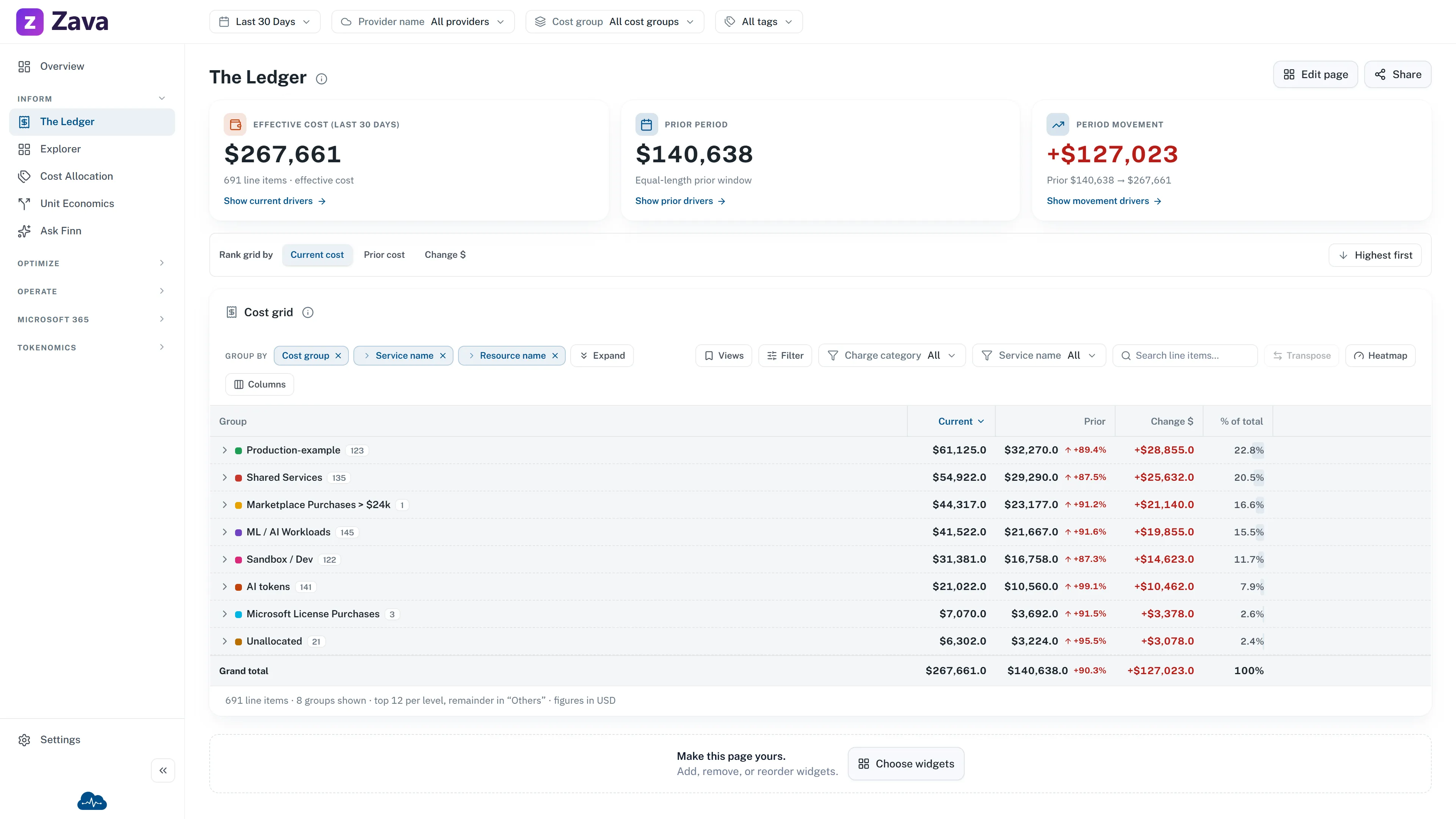
The Ledger is the unified bill across every source you’ve connected. One row per charge, nothing summarized away, and every other cost number in CloudMonitor reconciles back to it.
If you learn one screen properly, make it this one.
Choose the summary widgets
Section titled “Choose the summary widgets”The Ledger starts with Current period cost above the bill. Prior period cost, Period change, and Monthly average cost are available from its page-specific widget picker. The bill table itself is fixed: hiding every summary widget never removes the rows you reconcile.
Use Edit page in the header to arrange the summary. At the bottom, Make this page yours. offers a quicker route: Choose widgets enters the same draft edit mode and opens the picker immediately. The searchable gallery shows a safe sample preview, purpose, and current selected state for each Ledger widget. Select a preview for a larger detail view, or add and remove widgets directly from their cards. The previews never use your current bill.
Changes stay in the picker until Apply. Reorder them on the page if needed, then select Done to save. Closing the picker before Apply discards its pending choices. Page Cancel restores the layout you started with. The bottom prompt is hidden while editing because Add widget is already available in the header.
Grouping is how you use it
Section titled “Grouping is how you use it”The bill flat is unreadable. Group by rolls it up, and you can stack three levels, which is what turns a total into an explanation.
It groups by provider first, then whatever you choose: service, charge type, cost group, subscription, region, or a virtual tag.
A pattern that answers most questions:
- Group by cost group, then service, then resource.
- Expand the group whose number moved.
- Expand the service inside it.
- You’re now looking at the specific resource, with the team that owns it already established.
Four clicks from “the bill went up” to something you can act on.
Finding what moved
Section titled “Finding what moved”By default the Ledger shows your biggest groups by cost. Sort by Change and it asks a different question: it re-ranks your whole bill by how far each group moved against the period before, so a small line that tripled can appear even though it would never make a list of your largest costs. Sort the other way to see the biggest drops, including anything that stopped costing you entirely.
A group that had no cost before is shown as New rather than a percentage: there’s nothing to compare it against. Movement of less than a cent is left out, so rounding noise doesn’t fill the list.
”Others”
Section titled “”Others””Where there’s a long tail, the Ledger shows the leading groups and rolls the rest into Others. That row is the exact remaining total, not a sample: the column still sums to your real bill.
What lands in it depends on what you sorted by. Sorted by cost, it’s your smaller groups. Sorted by Change, it’s everything that didn’t move, which can include your single largest cost, sitting steady.
It’s there so a large estate stays fast. Expanding a group queries only that group’s next level rather than everything at once.
Regions
Section titled “Regions”There’s no separate region report: grouping the Ledger by region replaced it, and the map lives here. Old links to Cost by Region still work and land here.
Every filter applies
Section titled “Every filter applies”The Ledger honors all of them: period, provider, cost group, virtual tags and your cost basis. That makes it the natural place to check a number you saw somewhere else: set the same filters and the figures agree, because they’re the same rows underneath.
Saving what you built
Section titled “Saving what you built”Once you’ve got a grouping worth keeping, save it as a view. It reappears next time rather than being rebuilt. See working with tables.
Where to go next
Section titled “Where to go next”- Preset groupings of this same data, one click each: Cost by service, team and more.
- A more visual slice-and-dice: The Explorer.
- Spend that belongs to nobody: Unallocated Costs.