Inside a cost group
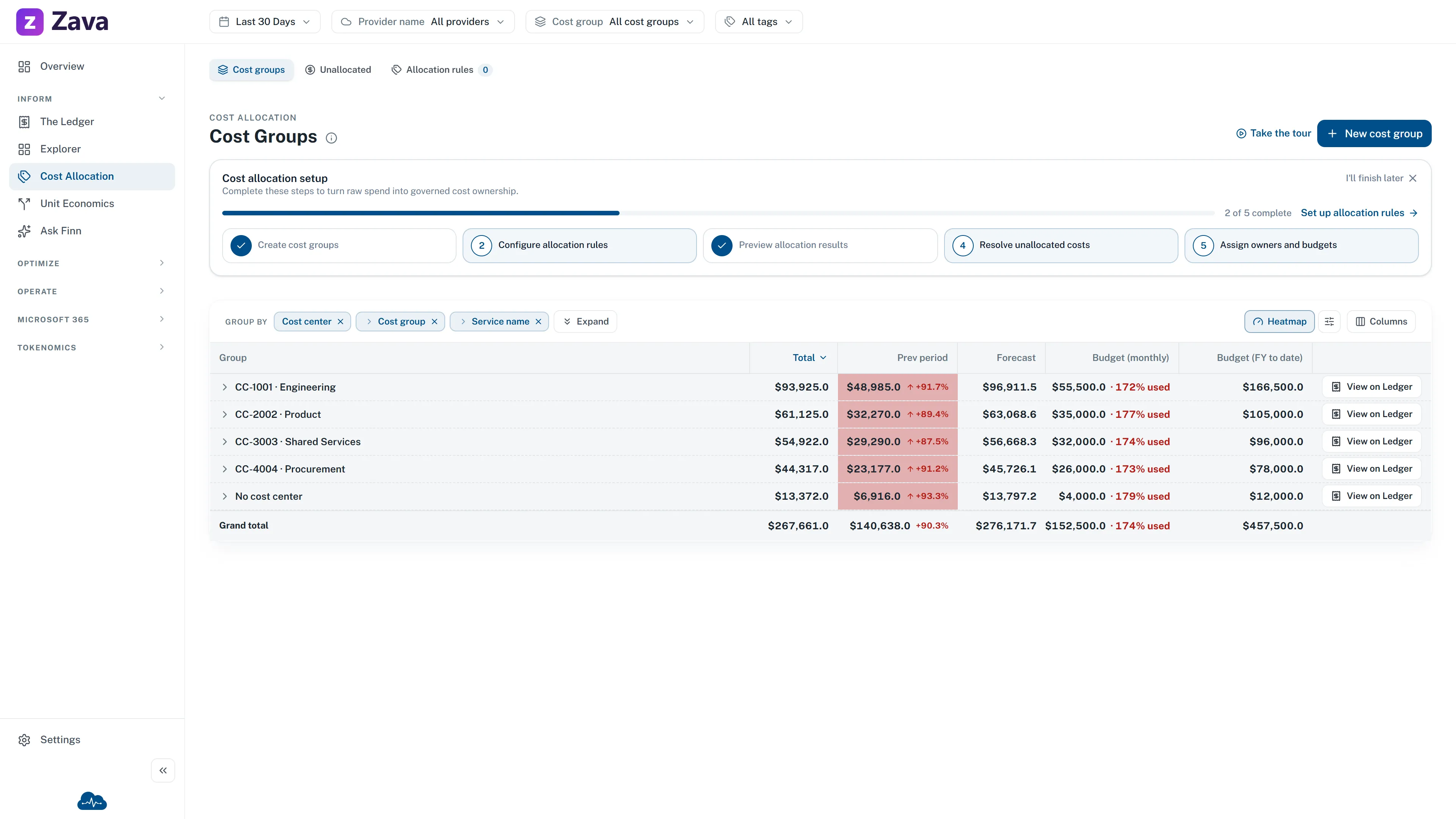
The full working view for one cost group. Open it from the Cost Groups report, a linked chart value, or a shared link.
Use it before a conversation with the team that owns the spend. It puts the current position, the next action, the underlying costs, and the ownership record in one route.
Start with Overview
Section titled “Start with Overview”Overview answers the questions that usually decide the next conversation: are we on plan, what needs attention, what drives the cost, and who owns it?
For a regular cost group, the summary shows Actual cost to date (FY), Latest month, and Total savings. Total savings is the Total Savings measure across all available cost history attributed to the group; it is not a monthly value. When Unit economics is enabled and the group has a valid primary business quantity, the summary also shows its latest completed-month rate (for example, cost per order) with the supplied quantity, cost, comparison month, entry provenance, and cost basis. If no completed month has both cost and a positive quantity, the extra tile is absent; there is no empty placeholder or setup warning on Overview. When the latest month in the available data is the current month, the status above the summary compares its month-end forecast with a monthly budget. When the data ends at a completed month, it compares that month’s actual result instead. This comparison is made only when one comparable monthly budget exists. If there are several budgets, a currency problem, or no monthly budget, the page says so and does not calculate a combined variance. If budget definitions cannot be loaded, the page says budget status is unavailable rather than treating the failed read as no budget.
Spend vs plan shows monthly actual history. When the latest bucket is the current partial month, its last point plots the projected month-end value and is labeled Forecast; Latest month keeps the underlying month-to-date actual. A budget line appears when a monthly budget can be compared. Needs attention links directly to budget, anomaly, recommendation, or allocation work that has crossed an available action threshold. Nothing urgent means no available signal crossed its threshold; it does not treat an unavailable signal as healthy.
Top cost composition · all time ranks all-time composition by resource group, service, or subscription. Use it to find where the total sits. When the movement link is available, use it for an exact comparison with the preceding period. The owner and Created on remain at the bottom of the overview so the decision still has an accountable team and a record. If ownership cannot be loaded, Owner says Unavailable and never retains a person from a previously opened group.
Primary tabs
Section titled “Primary tabs”The main row keeps the everyday investigation routes visible.
| Tab | Use it to |
|---|---|
| Overview | Decide whether the group is on plan and open the most important follow-up. |
| Costs | Read the full monthly history and break the total down by service category, charge type, subscription, resource group, and region. |
| Actions | Review recommendations and cost anomalies attributed to this group, then open the full workflow when needed. |
| Resources | Inspect the usage resources and purchase records assigned to this group, with a route into The Ledger where the record supports it. |
More sections
Section titled “More sections”More keeps planning, access, and history available without crowding the main investigation row. What appears depends on the capabilities available to your account.
| Section | Use it to |
|---|---|
| Rules | Review which allocation rules can direct costs into this group. This appears only when you can access allocation rules. |
| Budgets | See every budget explicitly scoped to the group and open its definition in Budgets & Forecasts. |
| Unit economics | Define what the group produces, enter monthly values, and inspect its rate and cost-driver breakdown. This appears only when the capability is enabled. |
| Governance | Review the control information available for the group, such as budget performance, allocation, and access. |
| Members | See who has access and their role. Where team administration is available, Manage team opens the editor. |
| Audit trail | Trace budget and membership changes, triage actions, and team comments. |
The last section you open is retained for the session when you move between cost groups. A section that is no longer available falls back to Overview rather than leaving an empty page.
Unallocated is an action state
Section titled “Unallocated is an action state”Unallocated is the system cost group for spend that has not matched an allocation rule. Its Overview replaces the normal budget status with an Allocation gap and a direct route to the allocation work queue. If the latest available month is the current month, the gap includes the projected month-end amount and the summary adds Current month forecast. If the data ends at a completed month, the gap reports that month’s actual amount and no forecast tile is shown.
Needs attention links to the work queue and, when available, the relevant allocation rules. The page does not present unmatched cost as a healthy business unit. Where the work queue is available, Resolve costs remains in the header so the corrective action is close without hiding Costs, Actions, Resources, or the supporting sections under More.
Header controls such as Manage team and Edit appear only when the capability is available and your role permits it.
Fiscal year and filters
Section titled “Fiscal year and filters”The financial year here is your organization’s, set under Settings ▸ Workspace Settings, not the calendar year.
This page reads the group’s full history plus a financial-year scorecard, so a top-bar date range would contradict what’s on screen. CloudMonitor hides the Period chip rather than showing one that does nothing.
The cost group chip is hidden too, for the obvious reason: you’re already looking at one group.
Your cost basis still applies, and the card labels say which one they’re using.
If you can’t open it
Section titled “If you can’t open it”You need to be a member of the group, or an admin. Otherwise CloudMonitor says you don’t have access and points you at an admin or the group’s owner. See Roles and access.
If the cost panels fail but the rest loads
Section titled “If the cost panels fail but the rest loads”You’ll see a message saying the cost panels couldn’t load while membership and ownership details are unaffected. That’s accurate rather than partial: the group’s configuration comes from somewhere different to its spend, so one can be unavailable while the other is fine.