Upload the CloudMonitor Teams Bot
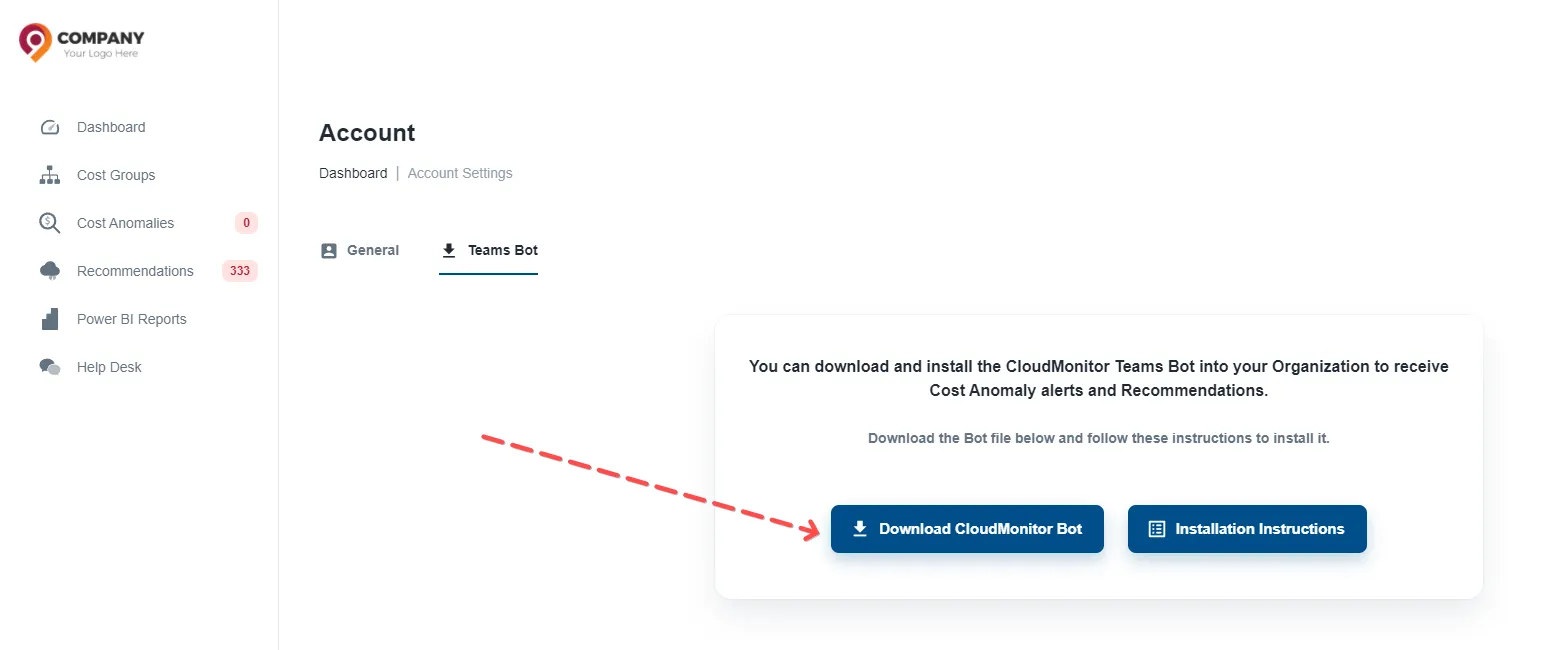
Step 1: Download the “CloudMonitor Bot” manifest file
If you are logged in as an Admin App Administrator, open the Admin App, go to Settings and click on “Teams Bot” tab. This is where you can download the Teams Bot manifest zip.
Step 2: Manage your Apps
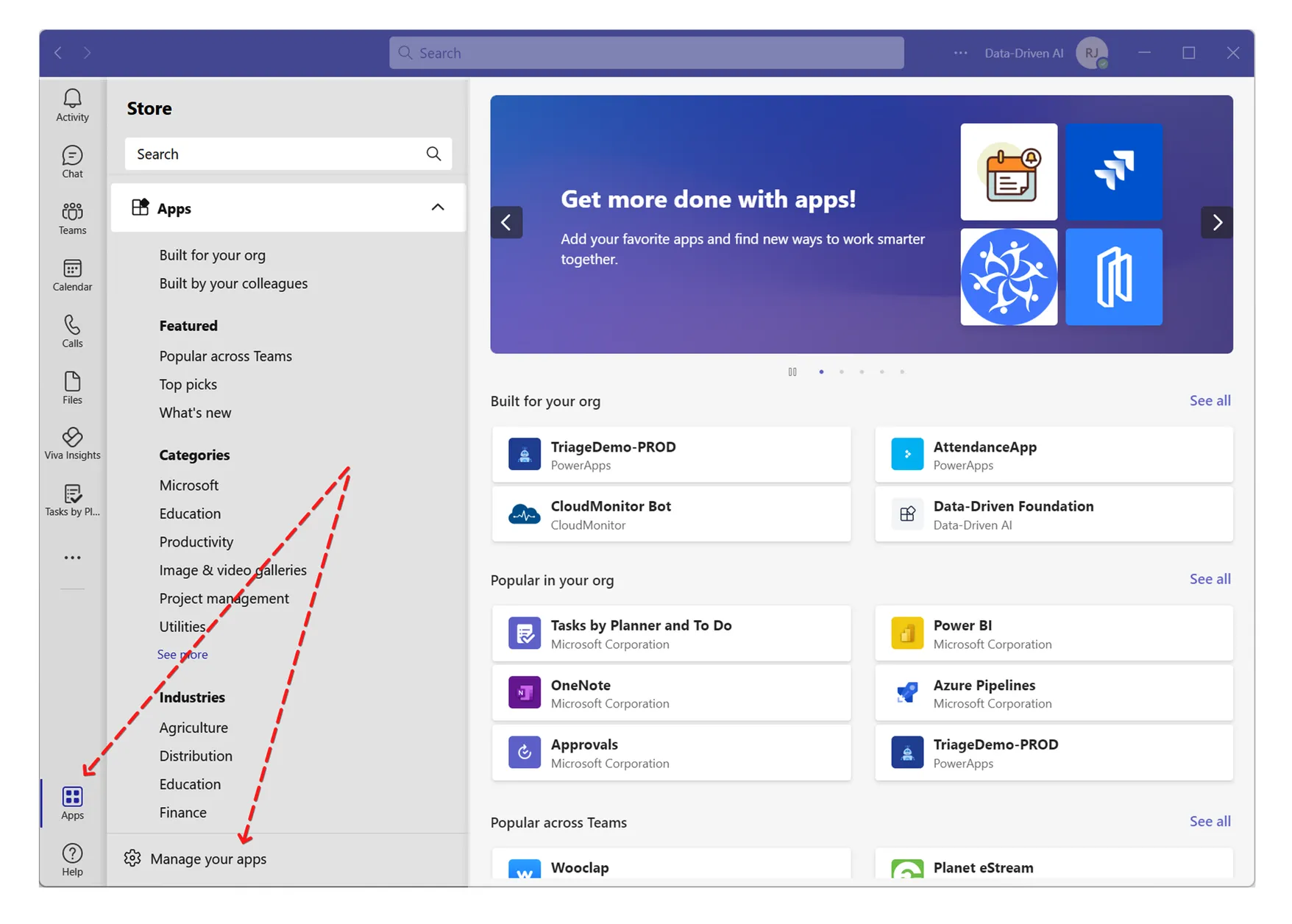
Section titled “Step 2: Manage your Apps”Go to MS Teams, click Apps (lower left), then Manage your Apps:
If you are a Teams admin, you will see the following options:
Step 3: Click “Submit an App to your org”
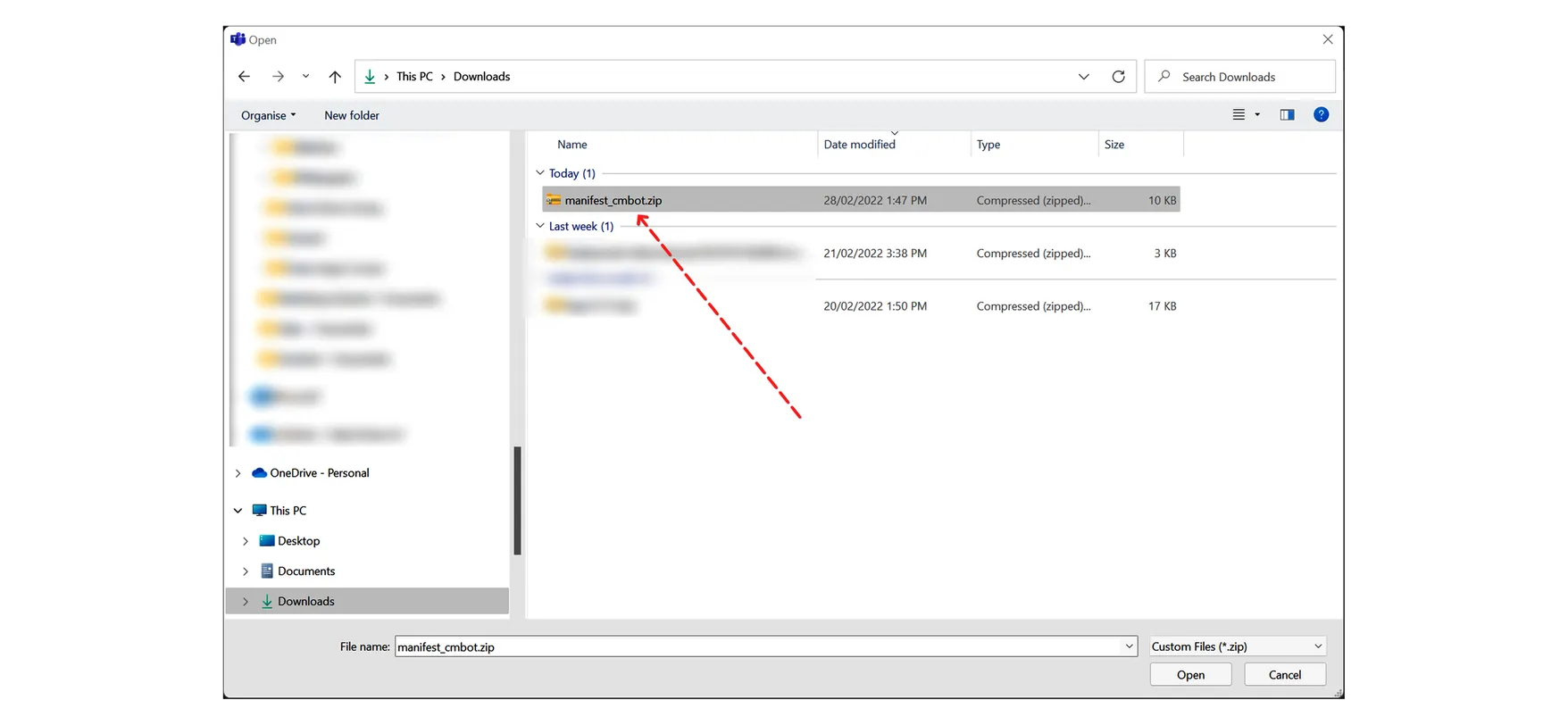
Section titled “Step 3: Click “Submit an App to your org””To submit an app to your IT admin for approval, just click on “Submit an app”.

Find the “CloudMonitor Bot” manifest file you download to your local computer:
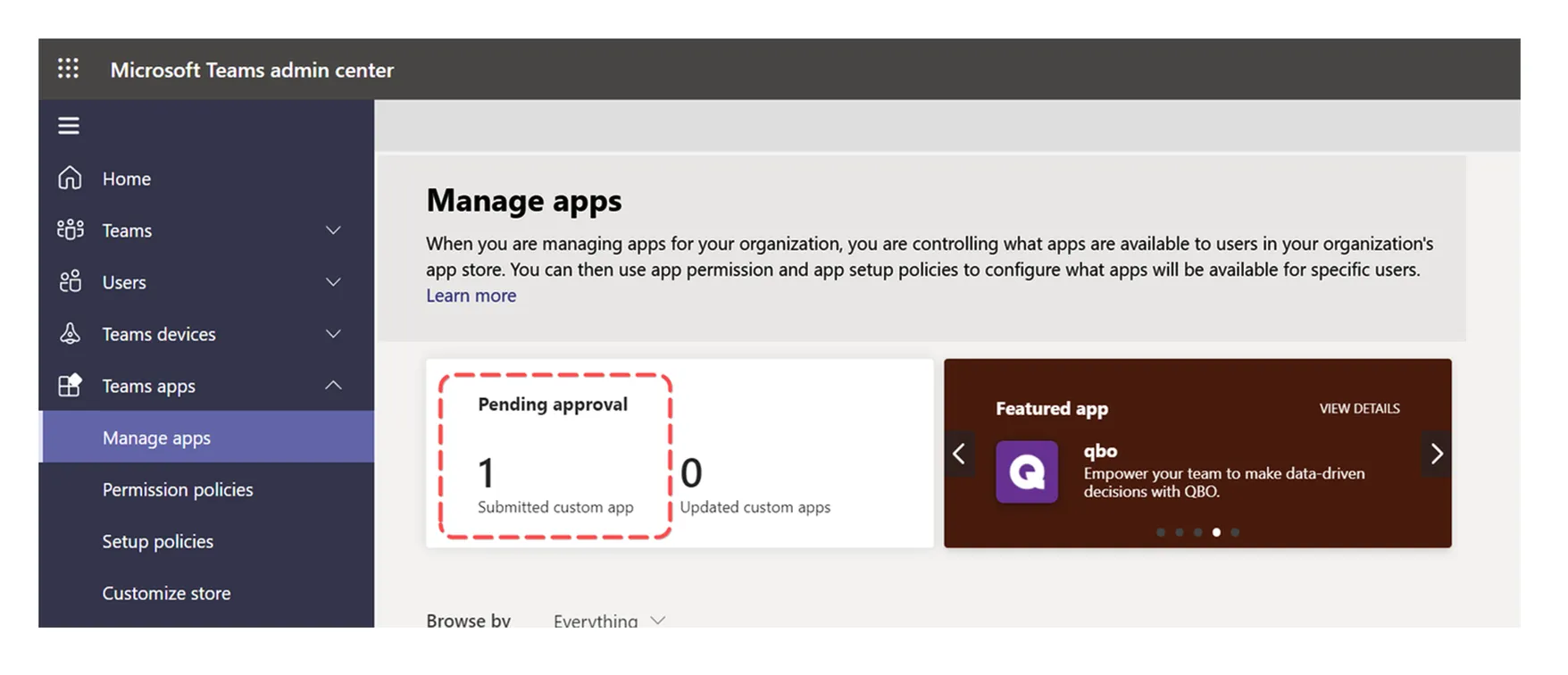
Once submitted, you can check the status of your app submission under Manage Apps.
Approving App Submissions
Section titled “Approving App Submissions”If you are an Admin, here’s a direct link to the page where you can “APPROVE” the submitted app:
This step is only applicable to IT admins.
From the Microsoft Teams Admin Center, go to Manage Apps:
And search for “CloudMonitor using the search field:
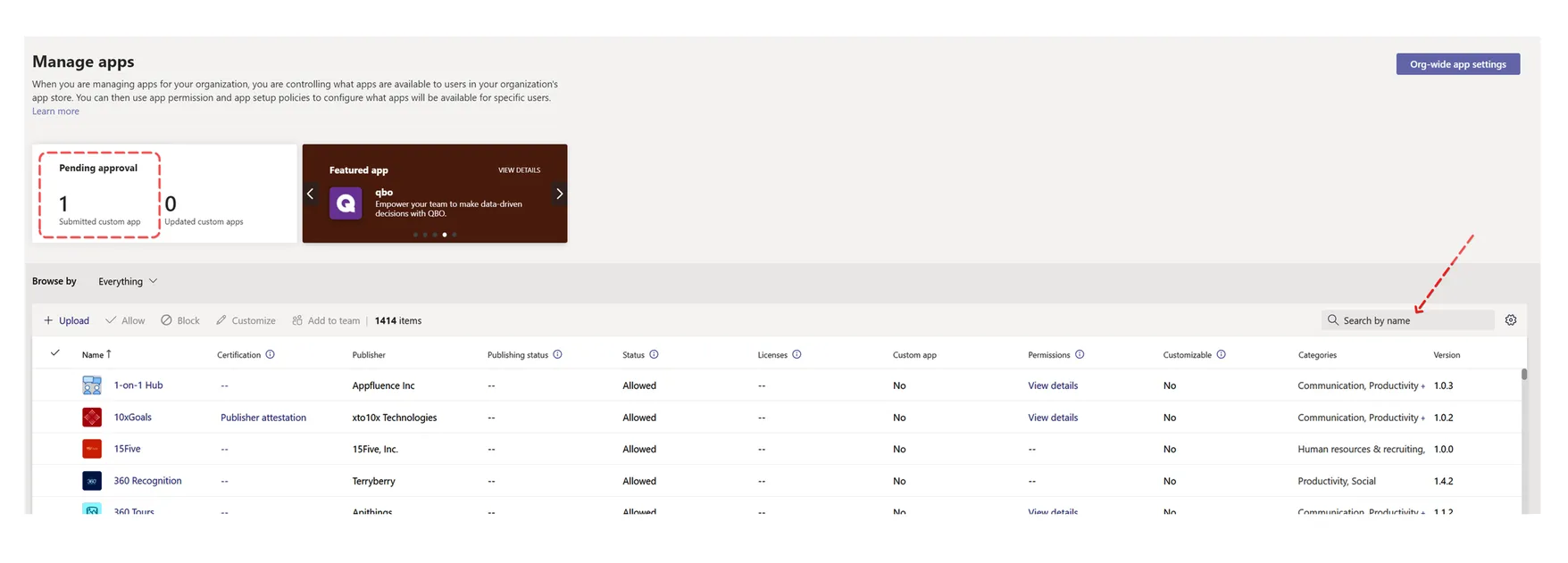
You will find CloudMonitor on the list here:
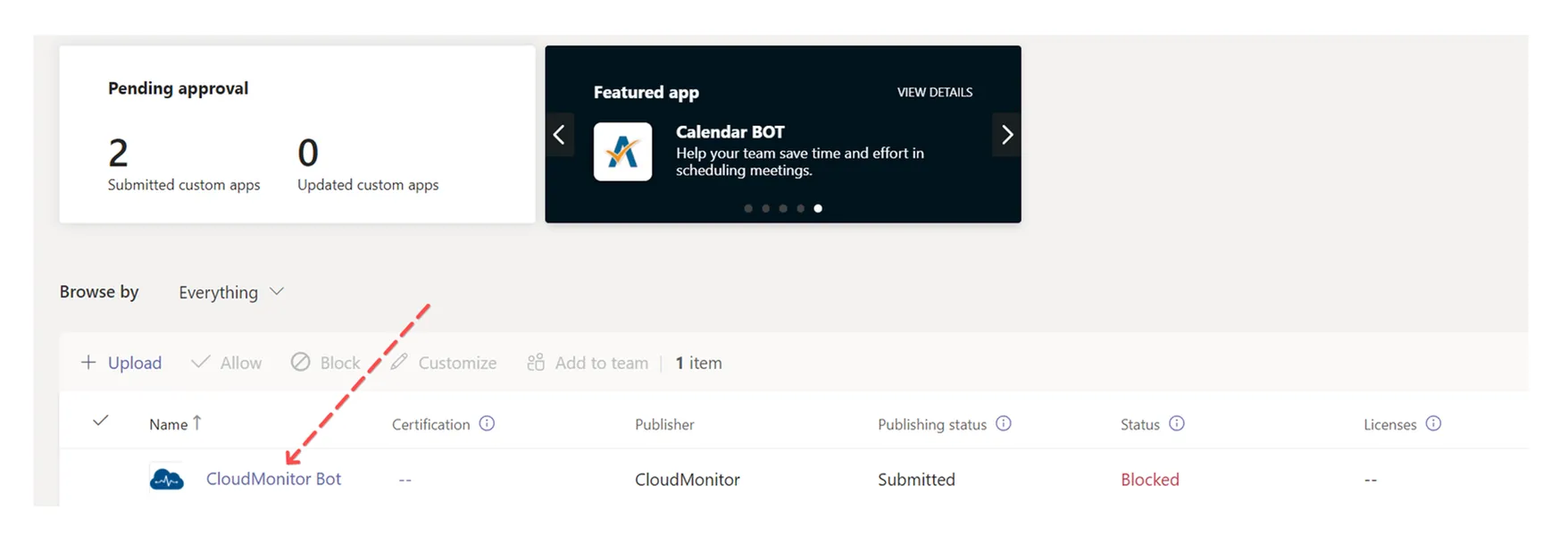
Step 4: Approve app submission
Section titled “Step 4: Approve app submission”To approve, just click on “Publish”
Section titled “To approve, just click on “Publish””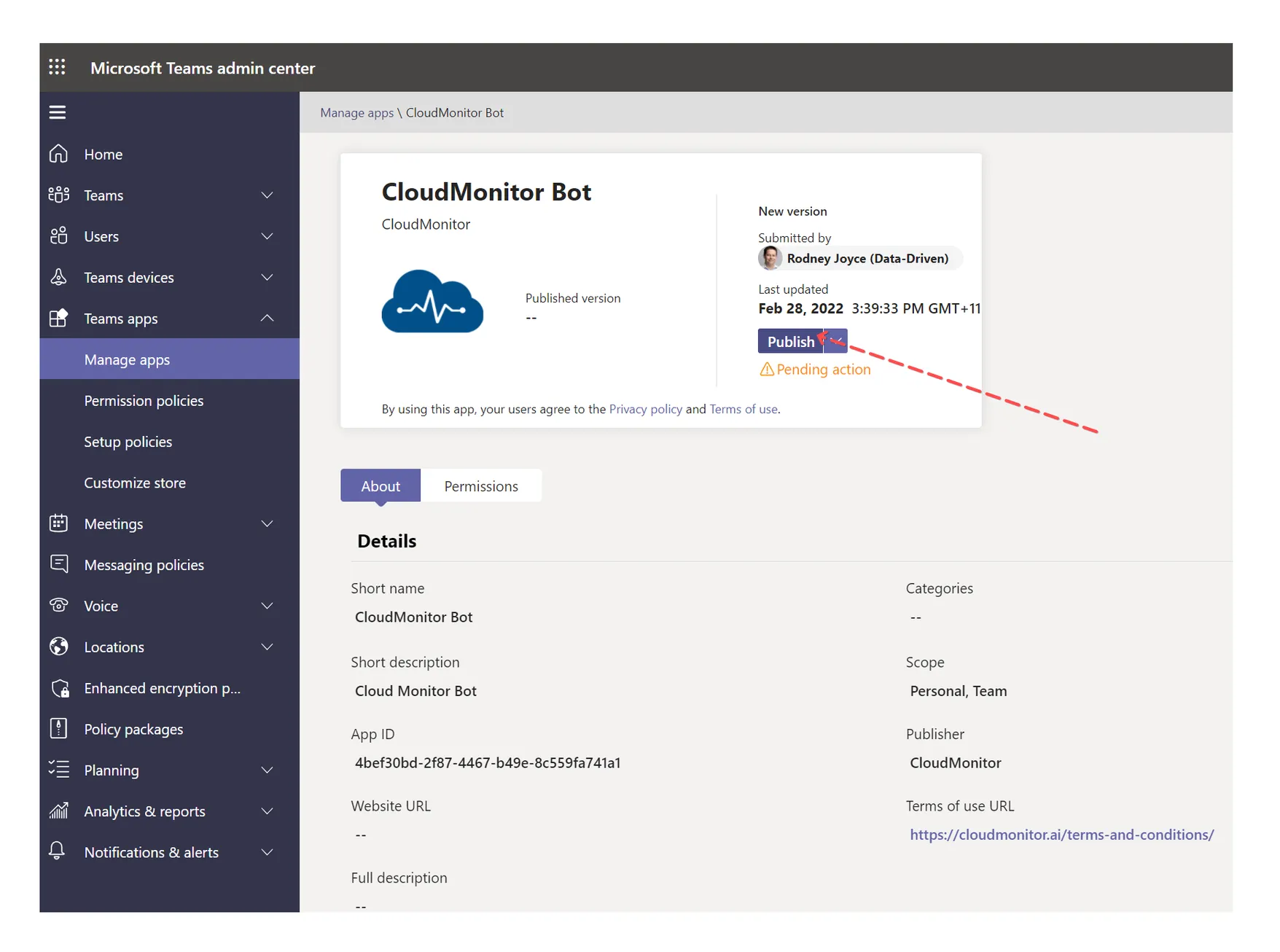
You just uploaded CloudMonitor Bot to your Team’s organization.
Related Articles
Section titled “Related Articles”How to Upload the CloudMonitor Teams Bot into your Organization