How to uninstall/remove CloudMonitor
If you would like to remove CloudMonitor or cancel your license subscription, you can do this through the Azure Portal.
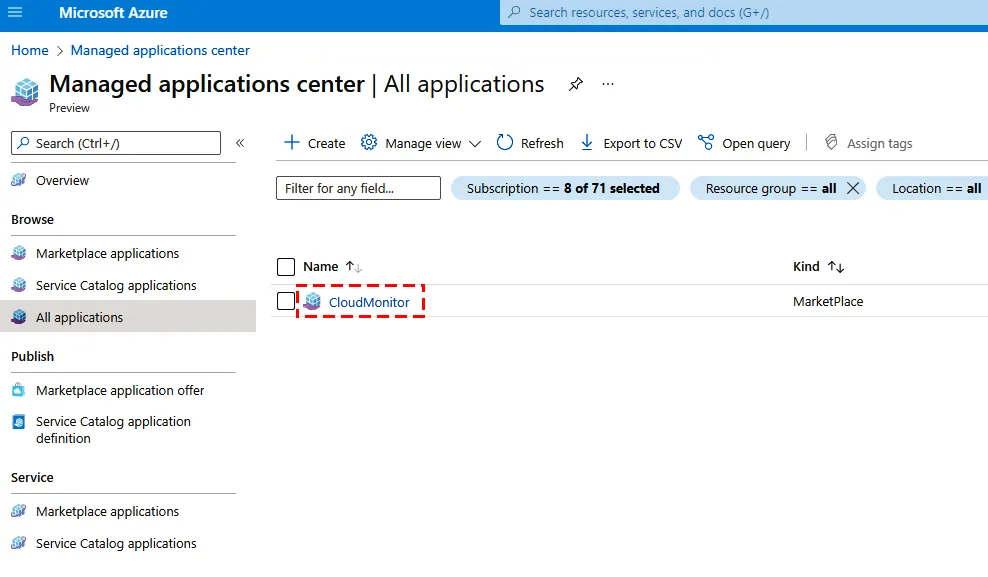
- Search for Manage Applications in the Search box at the top (or try this link)
- Click on the CloudMonitor Application that you want to uninstall
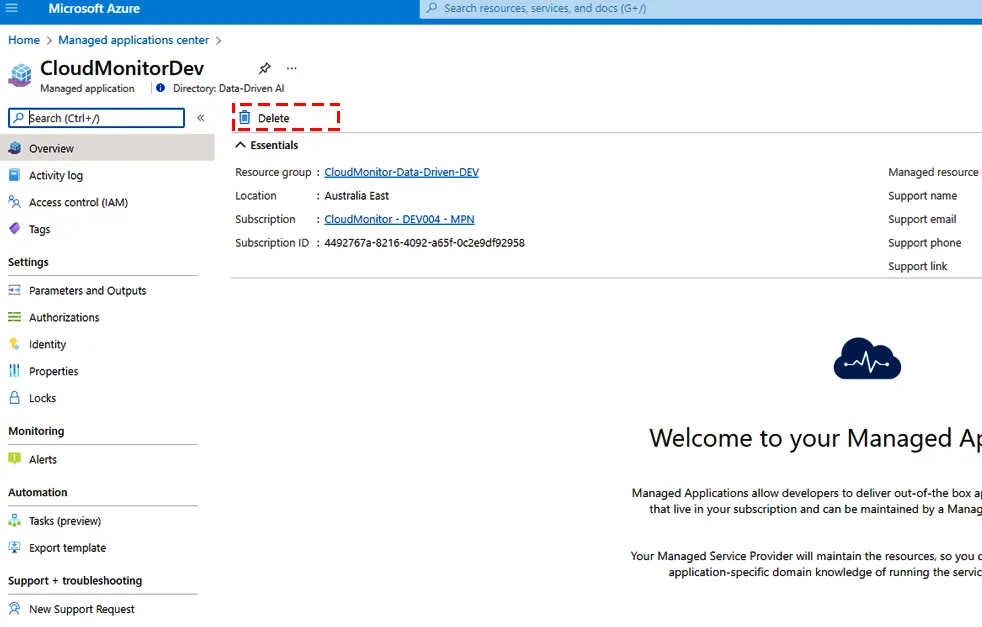
- From the Overview window, click the Delete option to remove CloudMonitor Engine and its Managed Resource Group entirely. You will not be billed again for it.
- Note: Due to the amount of resources, this operation sometimes needs to be repeated multiple times. Each time it deletes a number of resources but occasionally times out. In this case, just repeat this operation until it succeeds.
-
You can go into Active Directory and delete the CloudMonitor Service Principal that you created (or just remove it from IAM).
-
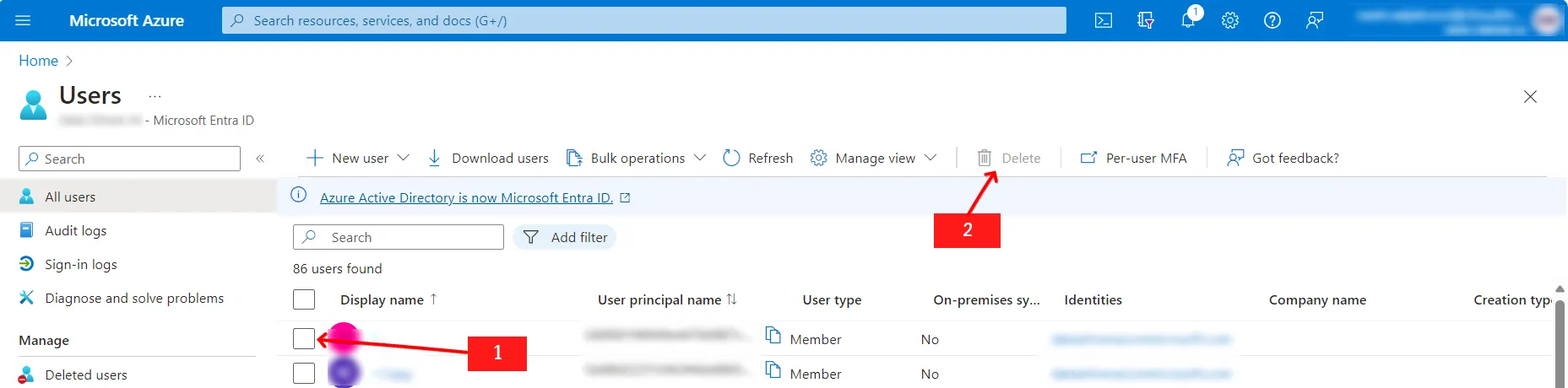
Navigate to “Microsoft Entra ID” and delete the B2B user which was created to view the billing accounts.
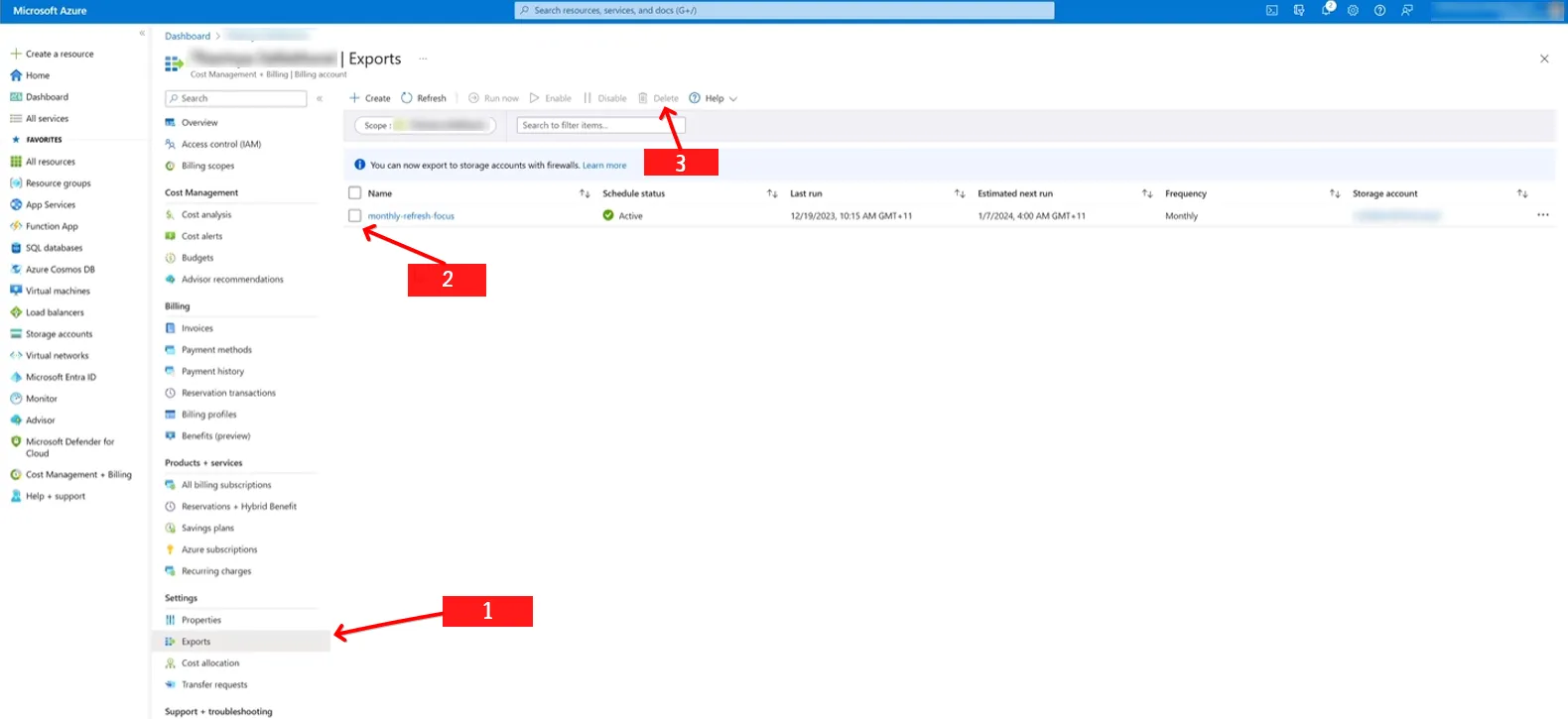
- Navigate to “Cost Management + Billing” and click on “Cost Mangement” on left pane. Then you will see option called “Exports”. Delete the cost exports which are unwanted.