Troubleshoot a failed Marketplace deploy
Occasionally during deployment, the CloudMonitor install will fail for an obscure reason. Usually, this is due to a Region limitation on one of the resources required, or a temporary setback in the Azure platform.
Step 1: Retry deployment
Section titled “Step 1: Retry deployment”The first step would be to retry it and check if it fails consistently.
Example of a failed marketplace deployment
Section titled “Example of a failed marketplace deployment”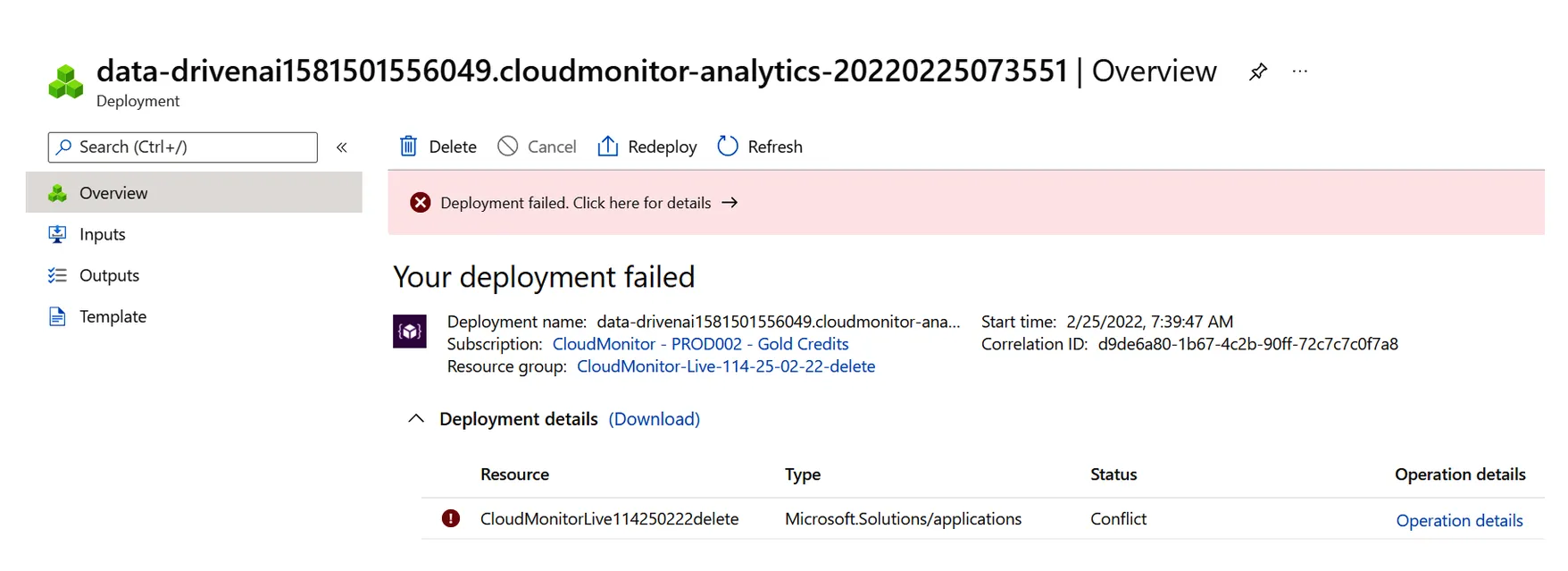
If it fails again, let’s explore the error messages to see if we can work out why.
Step 2: Explore the error messages
Section titled “Step 2: Explore the error messages”Click on the main red banner at the top for more details
Section titled “Click on the main red banner at the top for more details”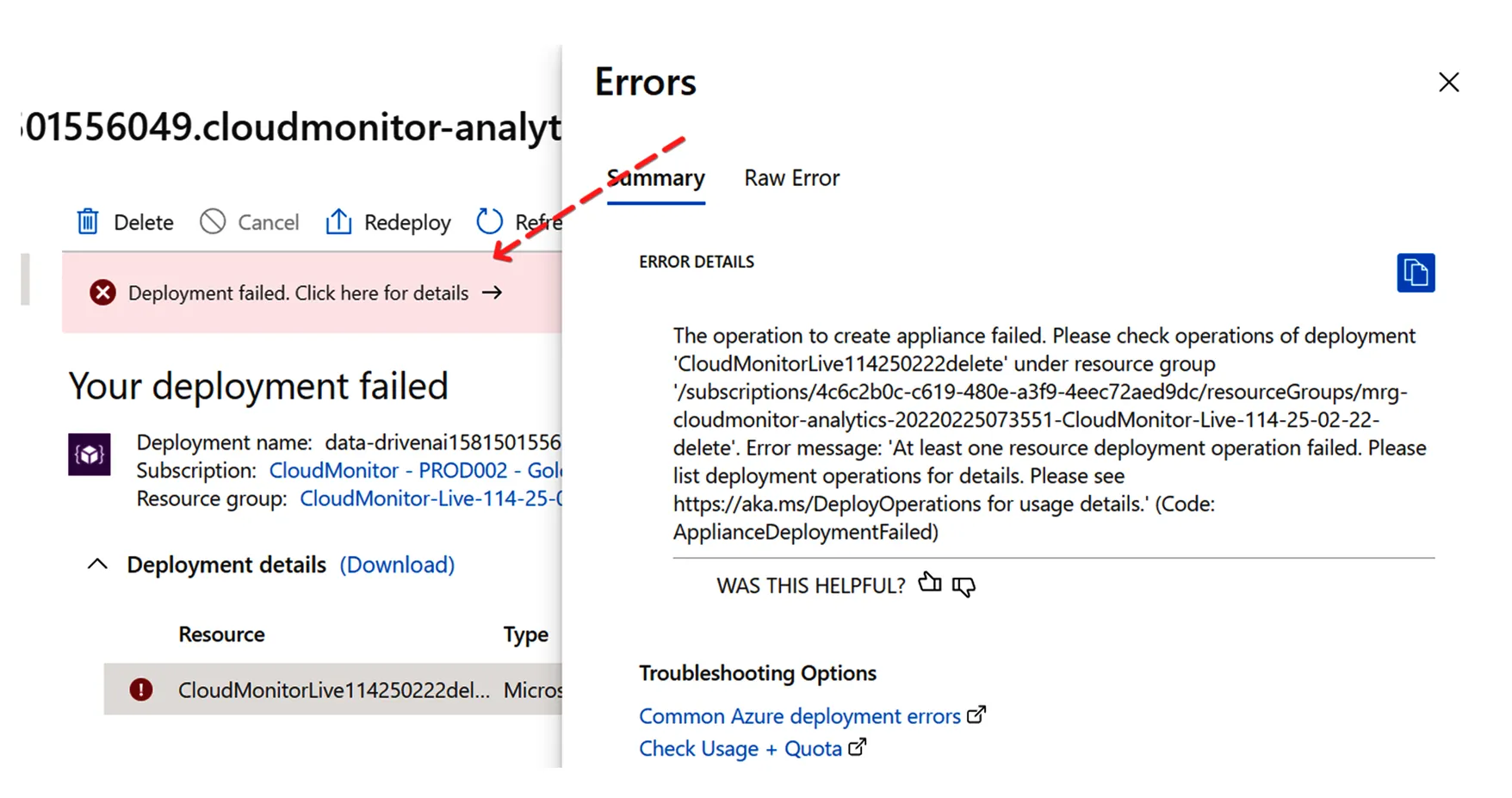
The Summary does not provide any useful information. Switching to the Raw Error provides more information:
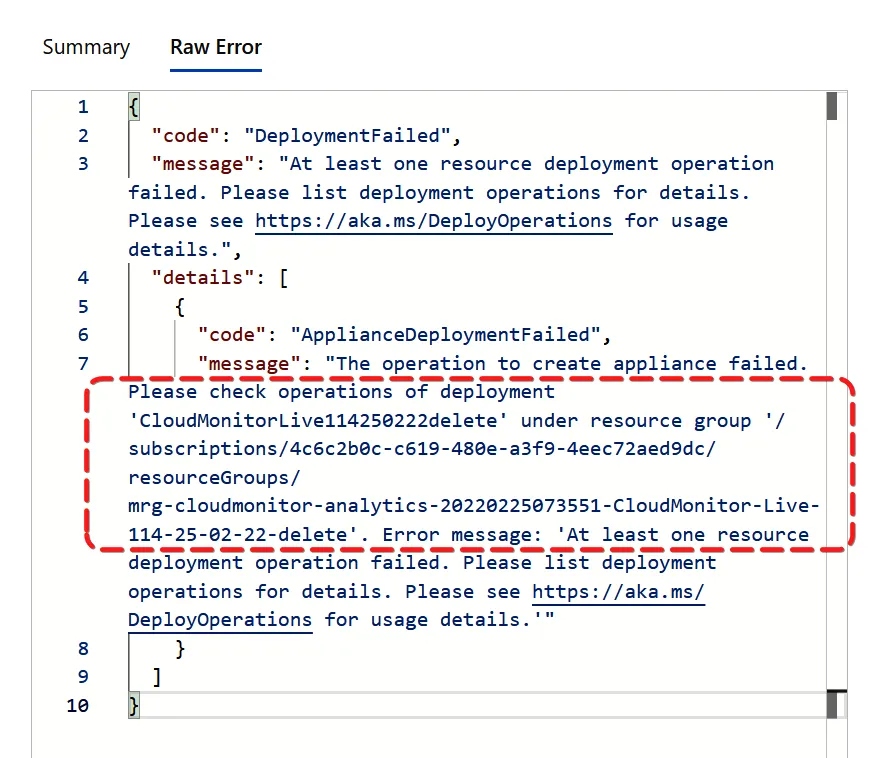
We need to find out WHY it failed as this error message is too high level, although it does instruct us where to look for the detailed error.
We need to go to the Managed Resource Group that was deployed and check the logs there.
Step 3: Click on the Subscription
Section titled “Step 3: Click on the Subscription”Click on the Subscription where you chose to deploy CloudMonitor to jump there and click on Resource groups in the left-hand menu to show all the Resource Groups on this Subscription.
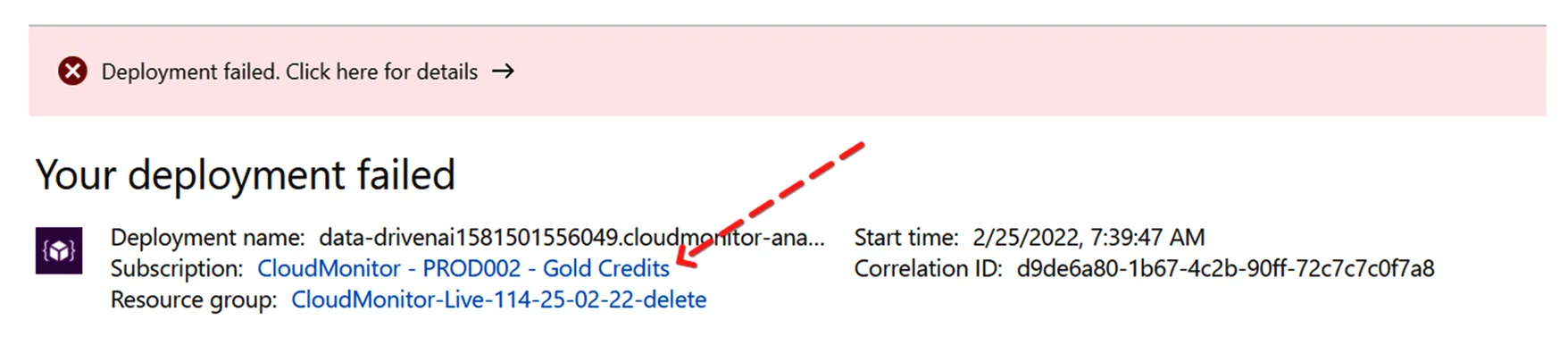
Step 4: Find the name of Resource Group
Section titled “Step 4: Find the name of Resource Group”Find the name of the Resource Group that you selected for the Managed Resource Group when you installed CloudMonitor (not the Resource Group you selected to install the CloudMonitor Application into).
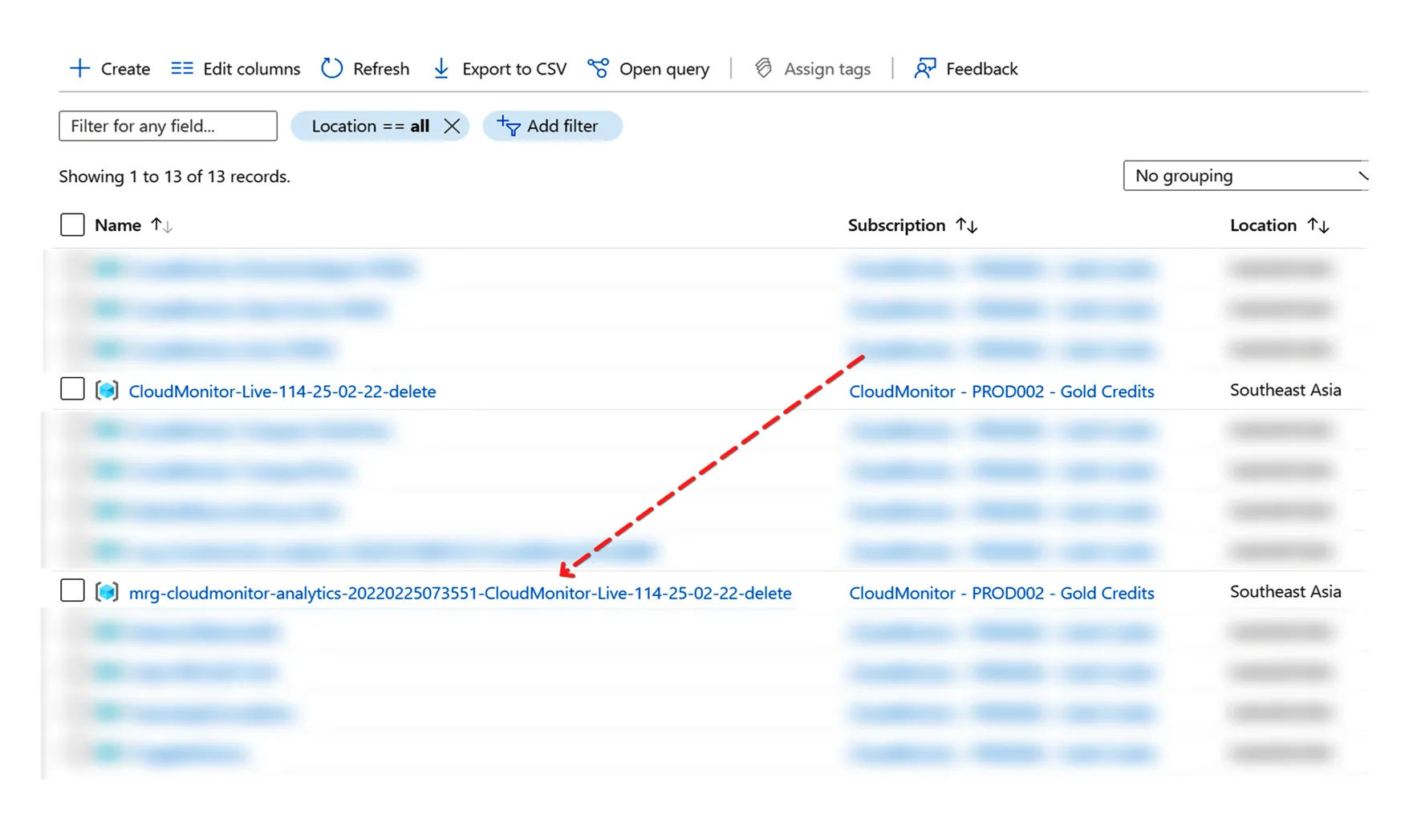
For example, in the screenshot below, we created a new Resource Group called “CloudMonitor-Live-114-25-02-22-delete” for the CloudMonitor Application, however we named the Managed Resource Group where the IP lives as “mrg-cloudmonitor-analytics-20220225073551-CloudMonitor-Live-114-25-02-22-delete“. This is the one to select.
Step 5: Click on Deployments
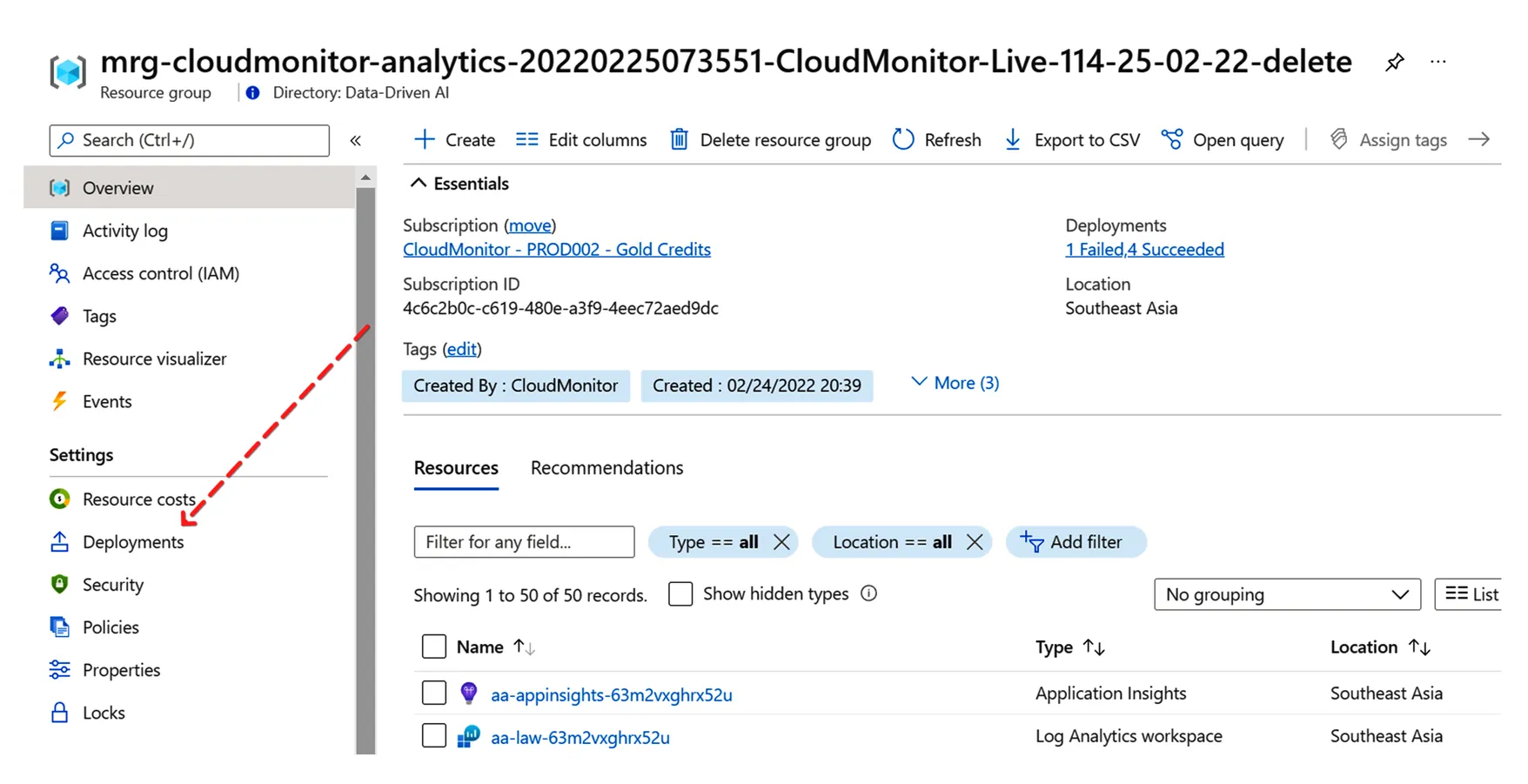
Section titled “Step 5: Click on Deployments”Click on Deployments in the left-hand menu to see the ARM deployment actions executed against this Resource Group.
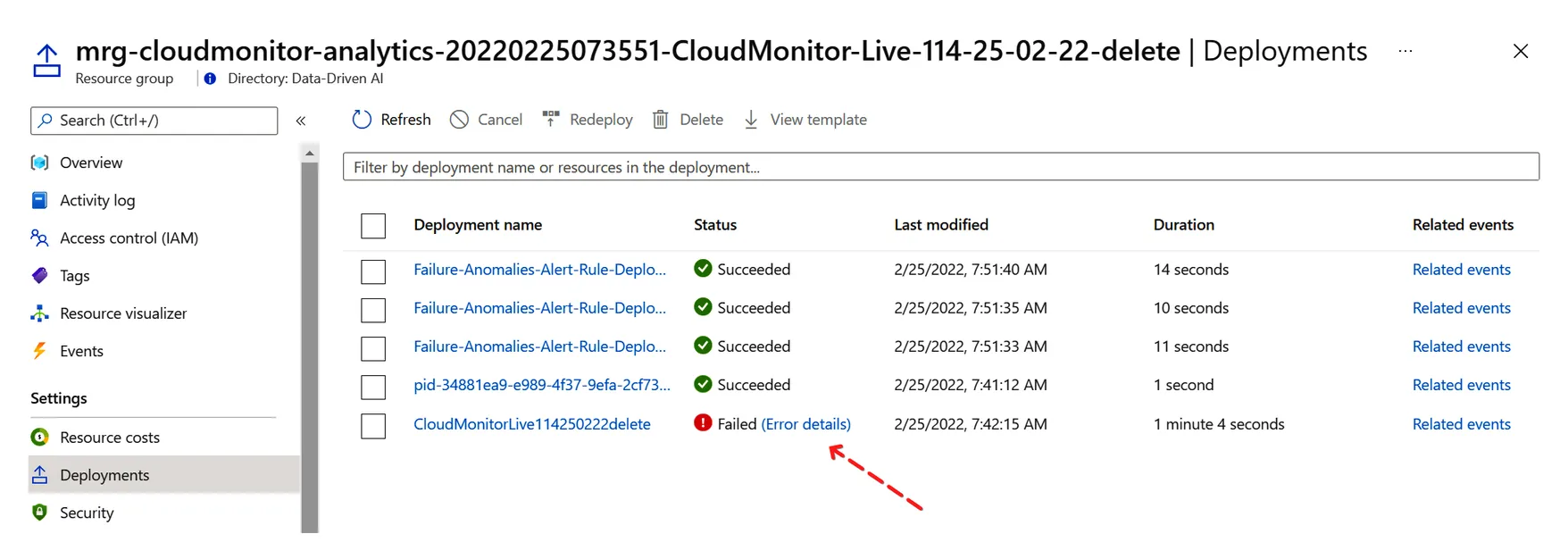
Now we can get more information as to WHY it actually failed by clicking on Error Details:
And we can see the true error
Section titled “And we can see the true error”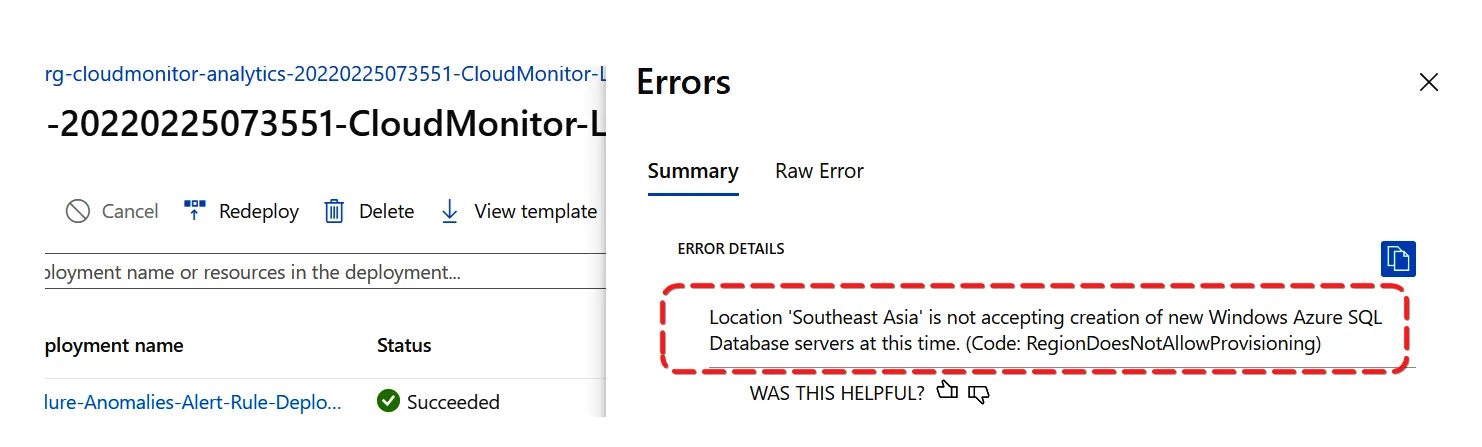
“{“code”:“DeploymentFailed”,“message”:“At least one resource deployment operation failed. Please list deployment operations for details. Please see Deployment history - Azure Resource Manager for usage details.”,“details”:[{“code”:“RegionDoesNotAllowProvisioning”,“message”:“Location ‘Southeast Asia’ is not accepting creation of new Windows Azure SQL Database servers at this time.”}]}
In this case, it is a Region issue. Azure is temporarily (or permanently) not accepting new SQL Databases in the region we chose to deploy to.
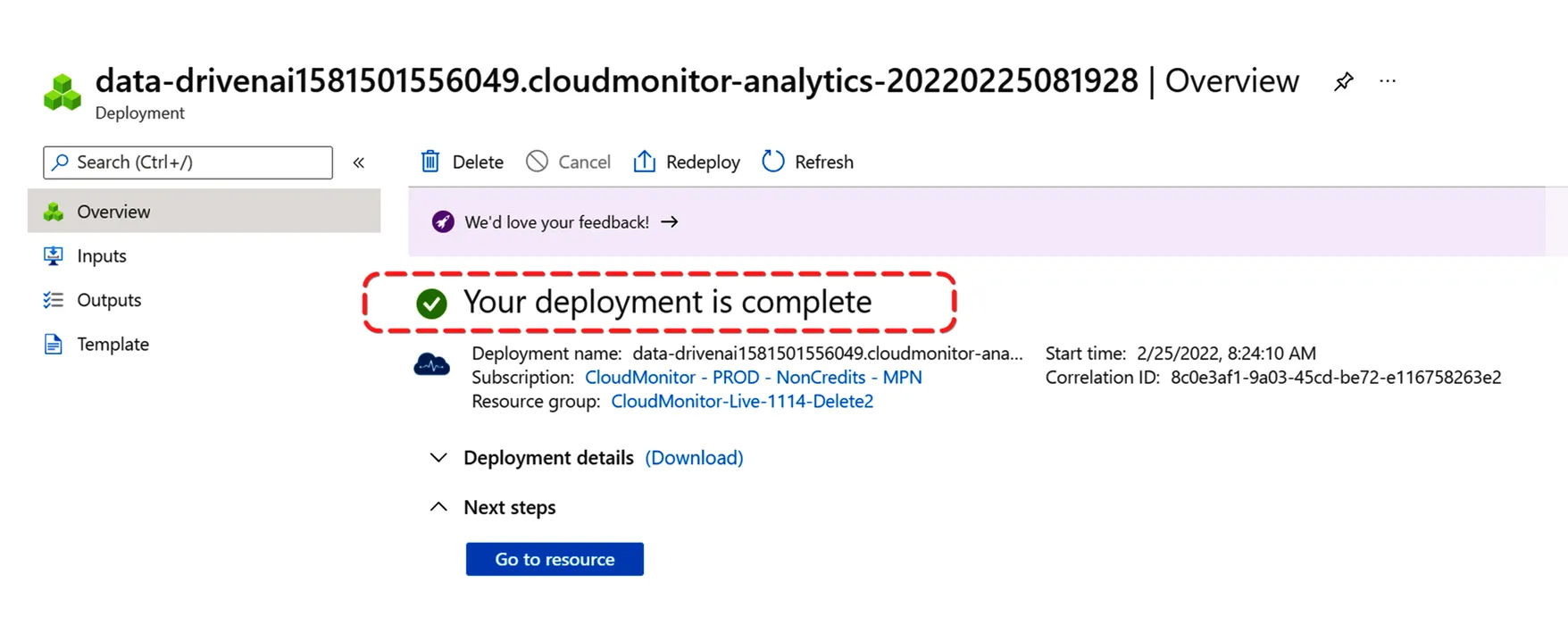
We can delete the old Resource Group as it is no longer needed and we redeploy to a different Region. This time the deployment succeeds:
Each error might require a different solution, however in this case the solution is to either raise a ticket with Microsoft Support through the Azure Portal and request that they allow you to proceed by lifting the quota limit, OR deploy to a different, nearby region.
When contacting CloudMonitor support please provide the real error above as it can help us track down the error faster.