Configure Service Principal for Teams Bot
To connect the CloudMonitor Analytics Engine to Teams Bot, we have to configure your service principal to add specific API permissions.
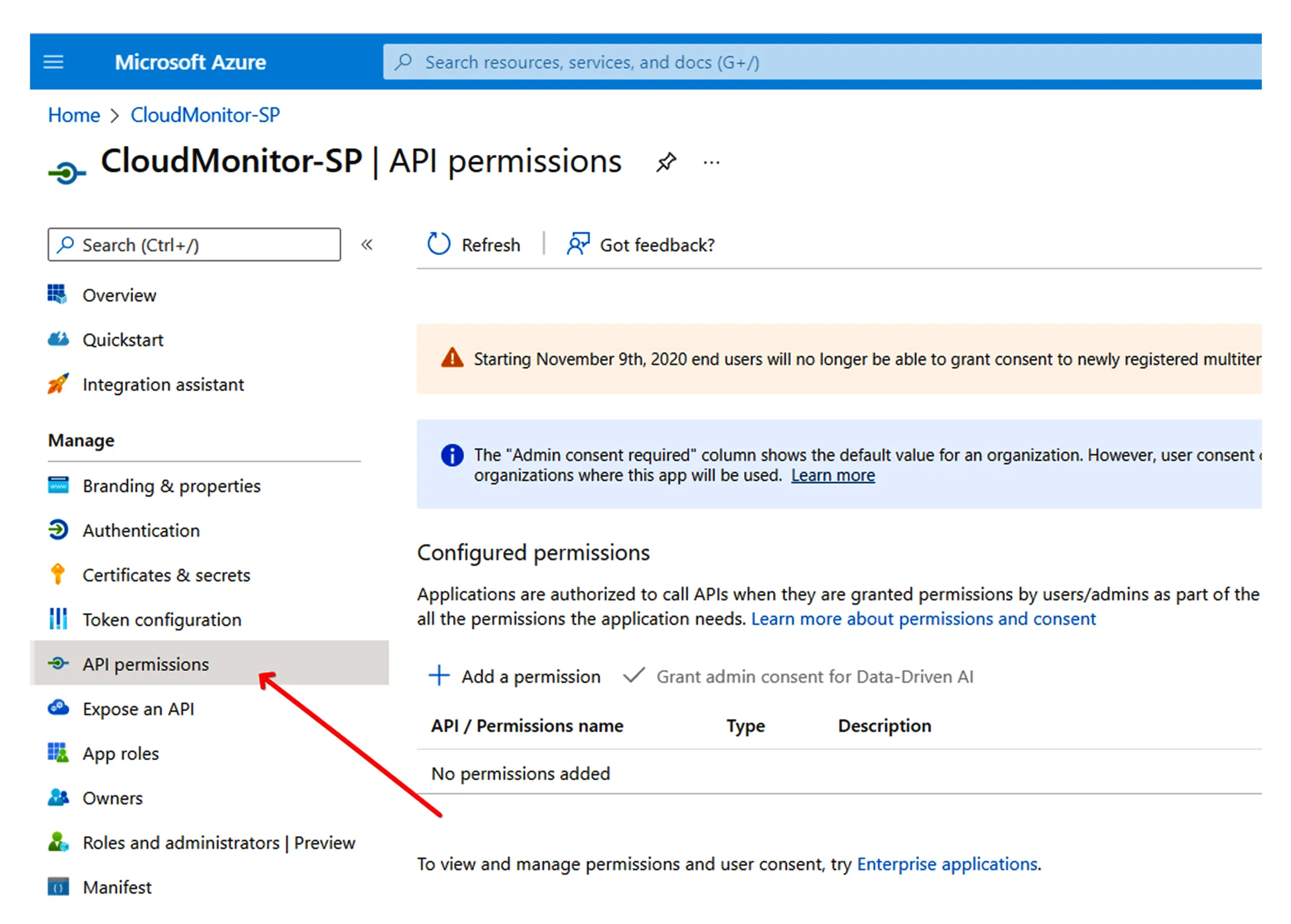
Step 1: Go to Azure Service Principal you created with the name “CloudMonitor-SP”
Section titled “Step 1: Go to Azure Service Principal you created with the name “CloudMonitor-SP””Then on the left sidebar, click on “API permissions”. (see screenshot below).
Step 2: Add API permissions
Section titled “Step 2: Add API permissions”Click on “+Add a permission”. This will open the “Request API permissions” drawer on the right side.
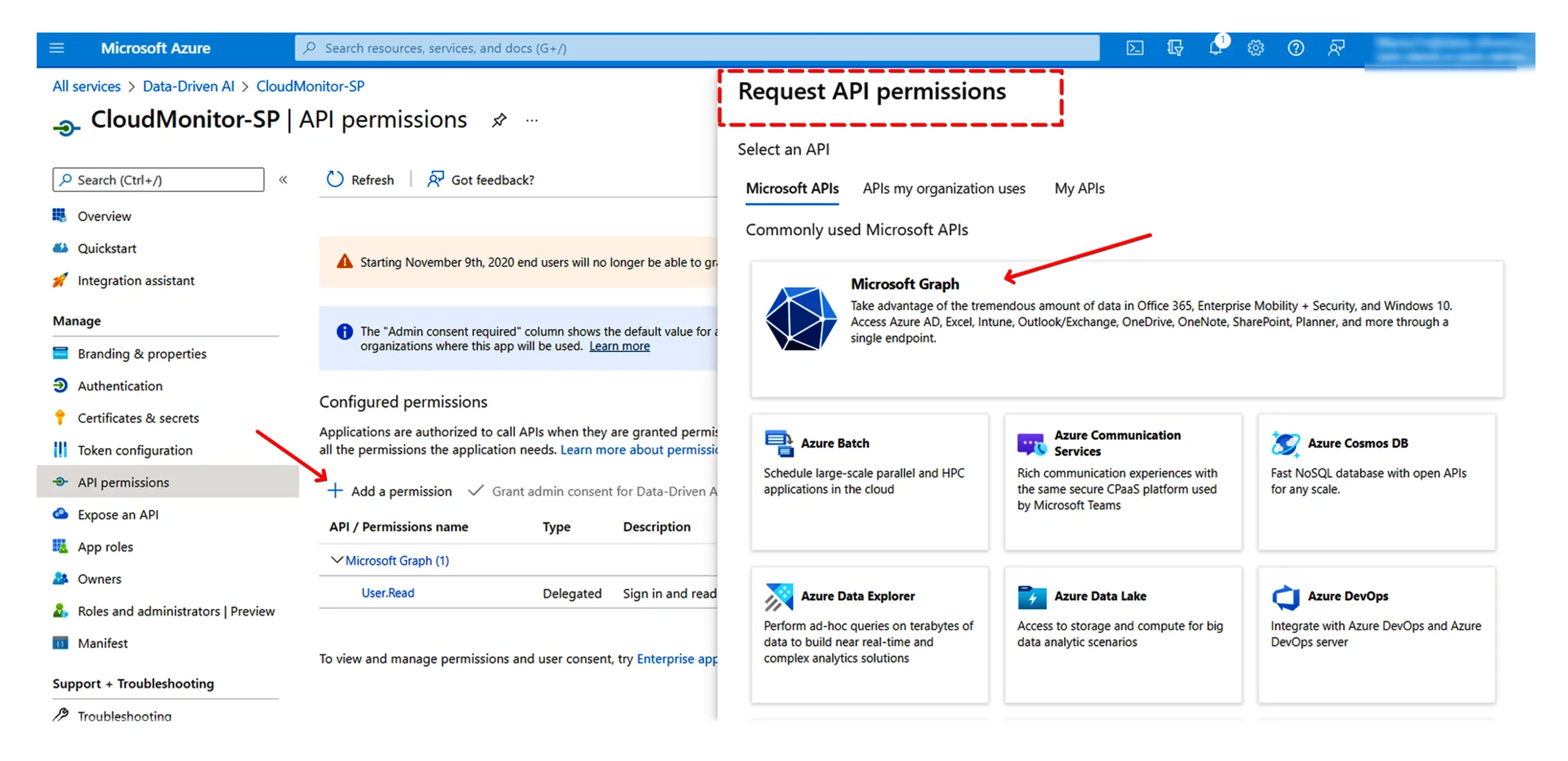
From this tab, click on “Microsoft Graph”
Section titled “From this tab, click on “Microsoft Graph””Then click on “Application permissions”
Section titled “Then click on “Application permissions””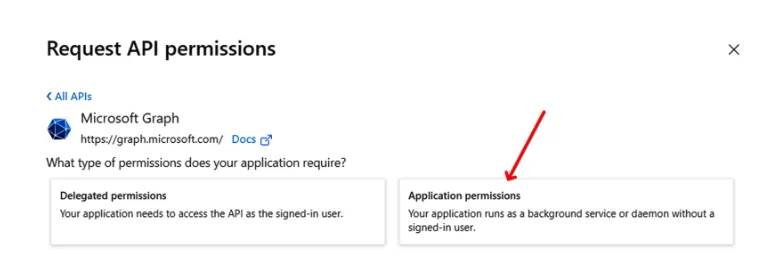
Step 3: Request API permissions
Section titled “Step 3: Request API permissions”Here’s the API permissions you need to add
Section titled “Here’s the API permissions you need to add”- Group.ReadWrite.All
- TeamMember.ReadWrite.All
- TeamsAppInstallation.ReadWriteForUser.All
- Teamwork.Migrate.All
- TeamsAppInstallation.ReadWriteSelfForTeam.All
- User.Read.All
- AppCatalog.Read.All
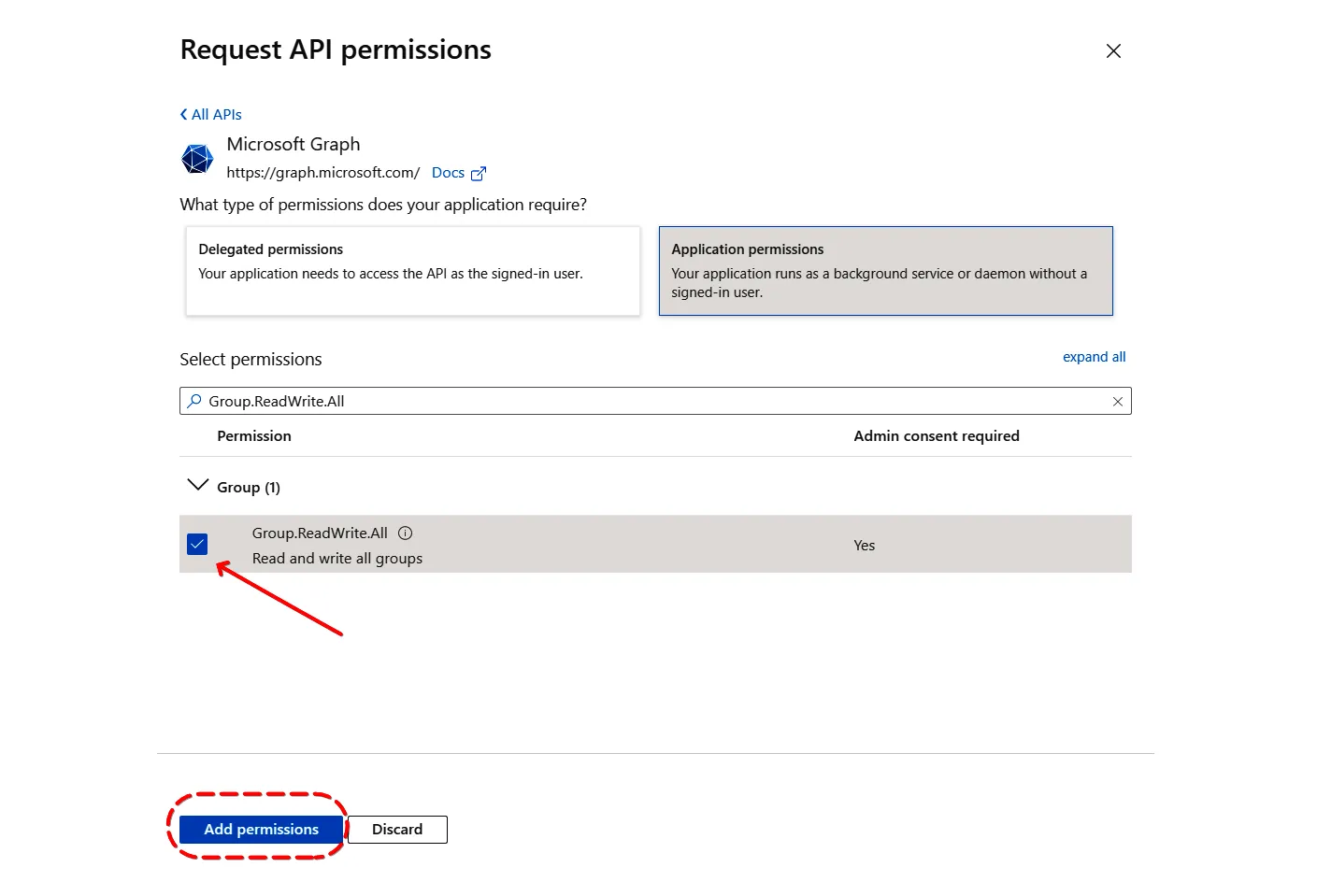
On the “Select Permissions” field, type in the permissions you need access to. Click on “expand all” option on the right side to make selecting permissions easier.
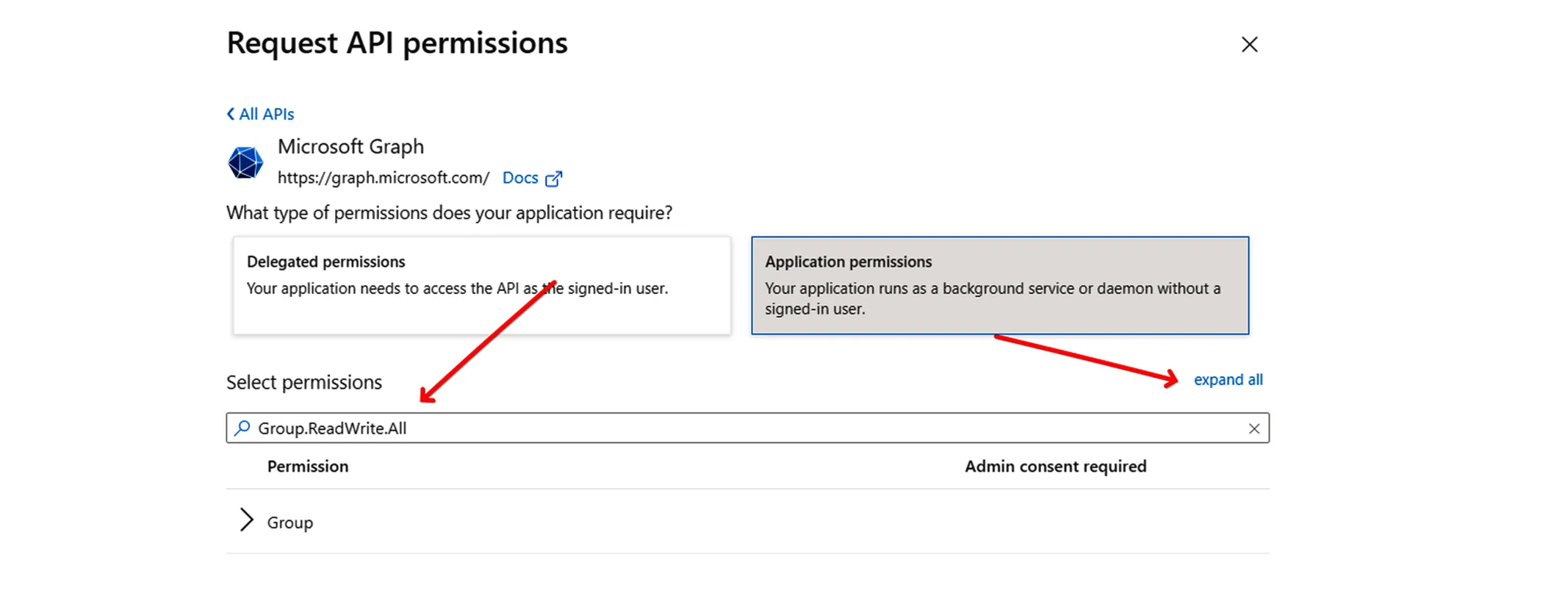
Then select the permission by clicking on the checkbox. Do this for the rest of the permissions needed and click on “Add permissions” when all have been selected.
Step 4: Grand Admin Consent to permissions added
Section titled “Step 4: Grand Admin Consent to permissions added”After adding all permissions, the final step would be to grant admin consent.
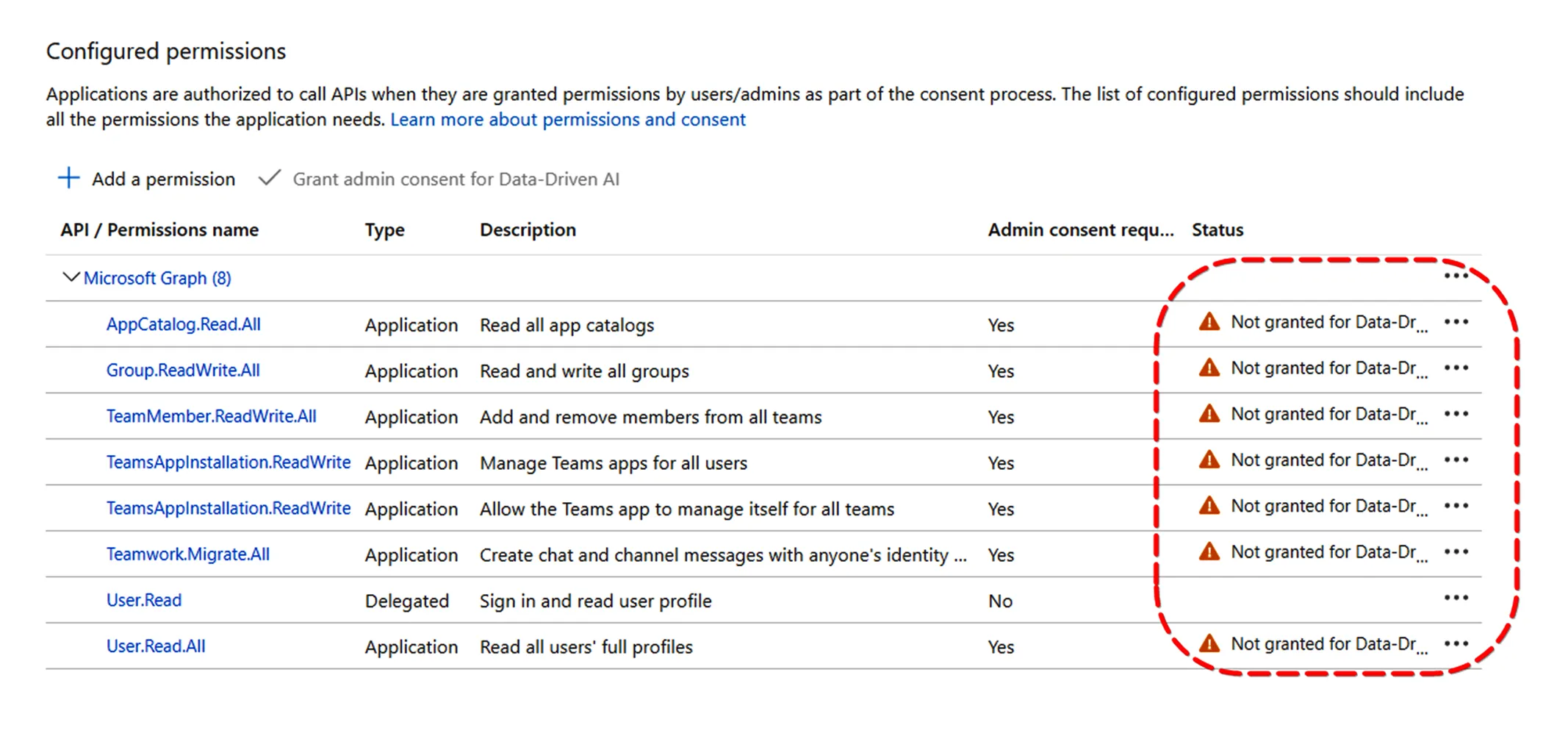
You will notice the status of the permissions showing as “Not granted for…”
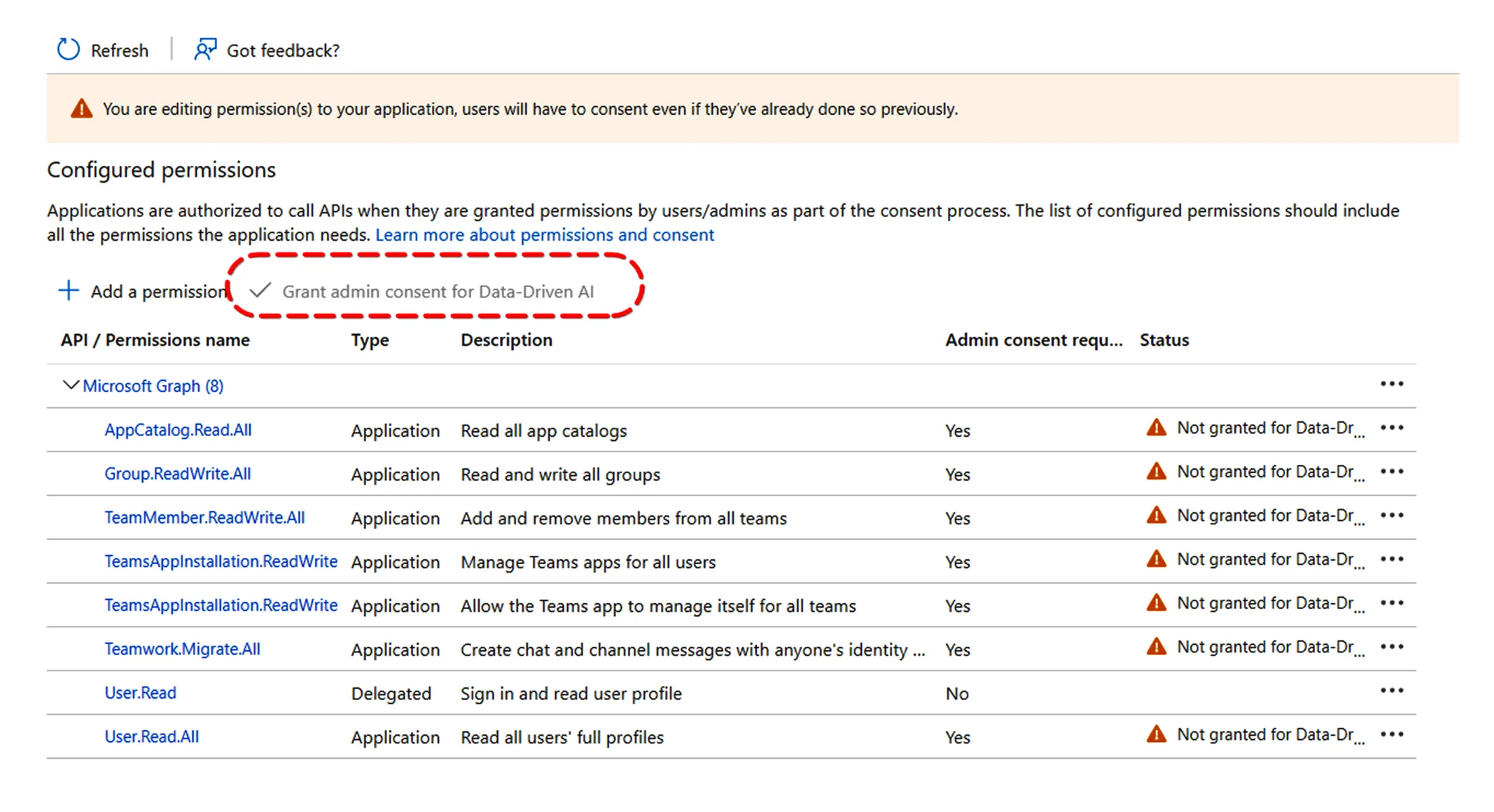
To grand admin consent, just click on the “Grand Admin Consent for…” option as shown below:
This will then change the “Status” of the permissions to “Granted”.
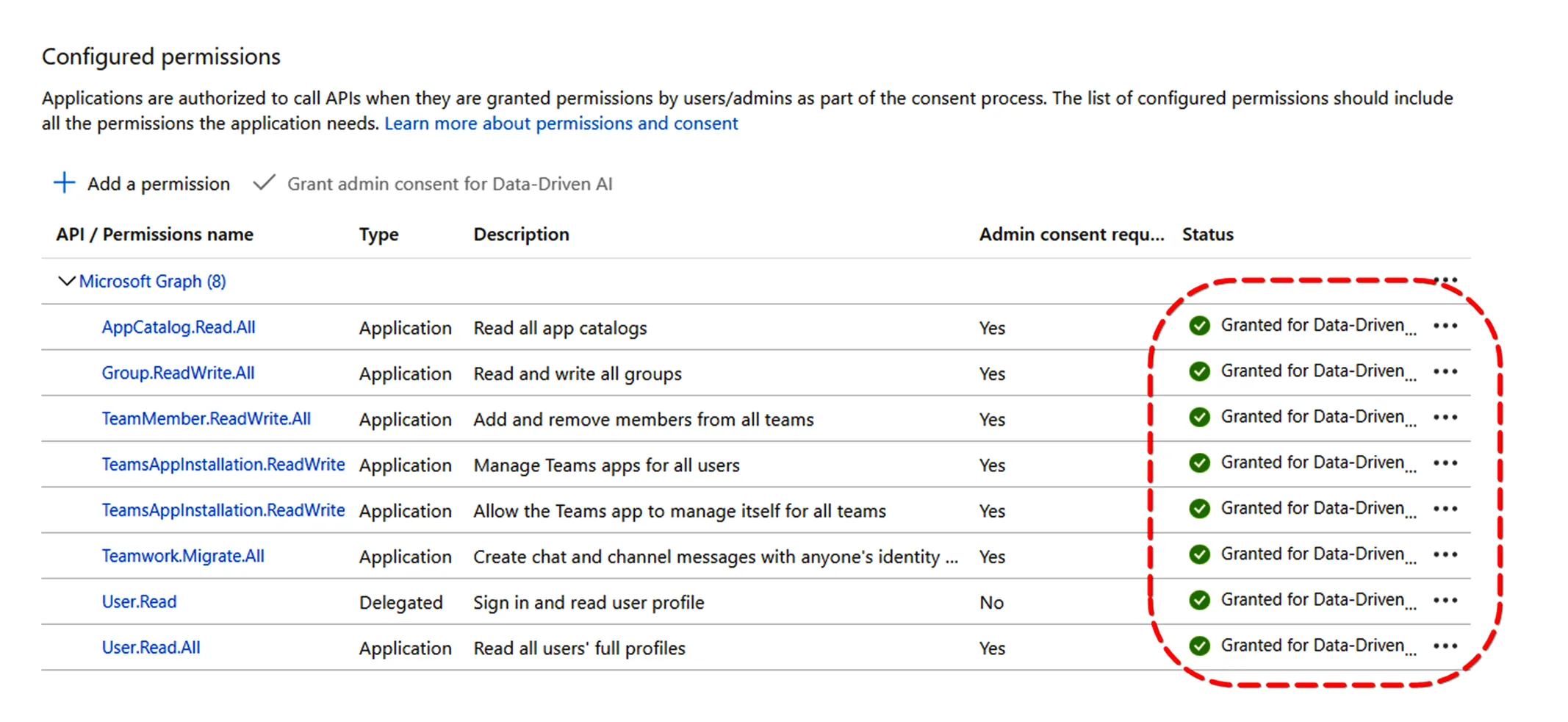
You just finished configuring your Service Principal for the Teams Bot.
Related articles
Section titled “Related articles”Configuring the Service Principal for Admin App Access