Resolve 'Couldn't Overwrite the app' error
From time to time, CloudMonitor admin releases a new and improved version of the template app via AppSource. However, the below error might be encountered when trying to install the latest version.
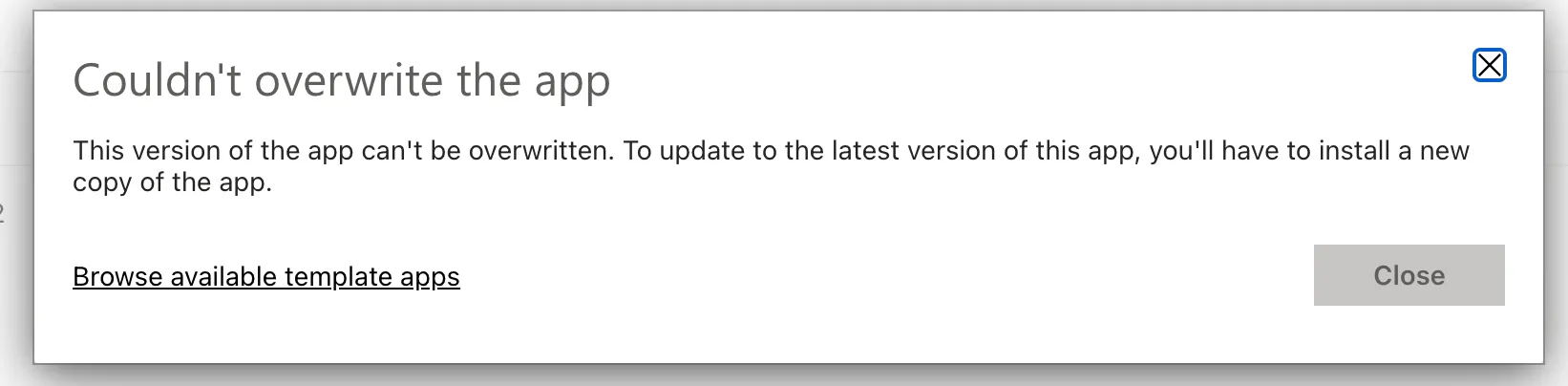
As a workaround, the application should be installed into a new workspace.
Important: When installing the application into a new workspace, CloudMonitor will require the SQL Server and Storage Account credentials. If you don’t have the latest credentials please submit a ticket or reach out to support@cloudmonitor.ai.
Step 1: Updating from the notification banner in PowerBI’s notification pane
Section titled “Step 1: Updating from the notification banner in PowerBI’s notification pane”To install the latest version, from the notification center, just click on “Get it”:
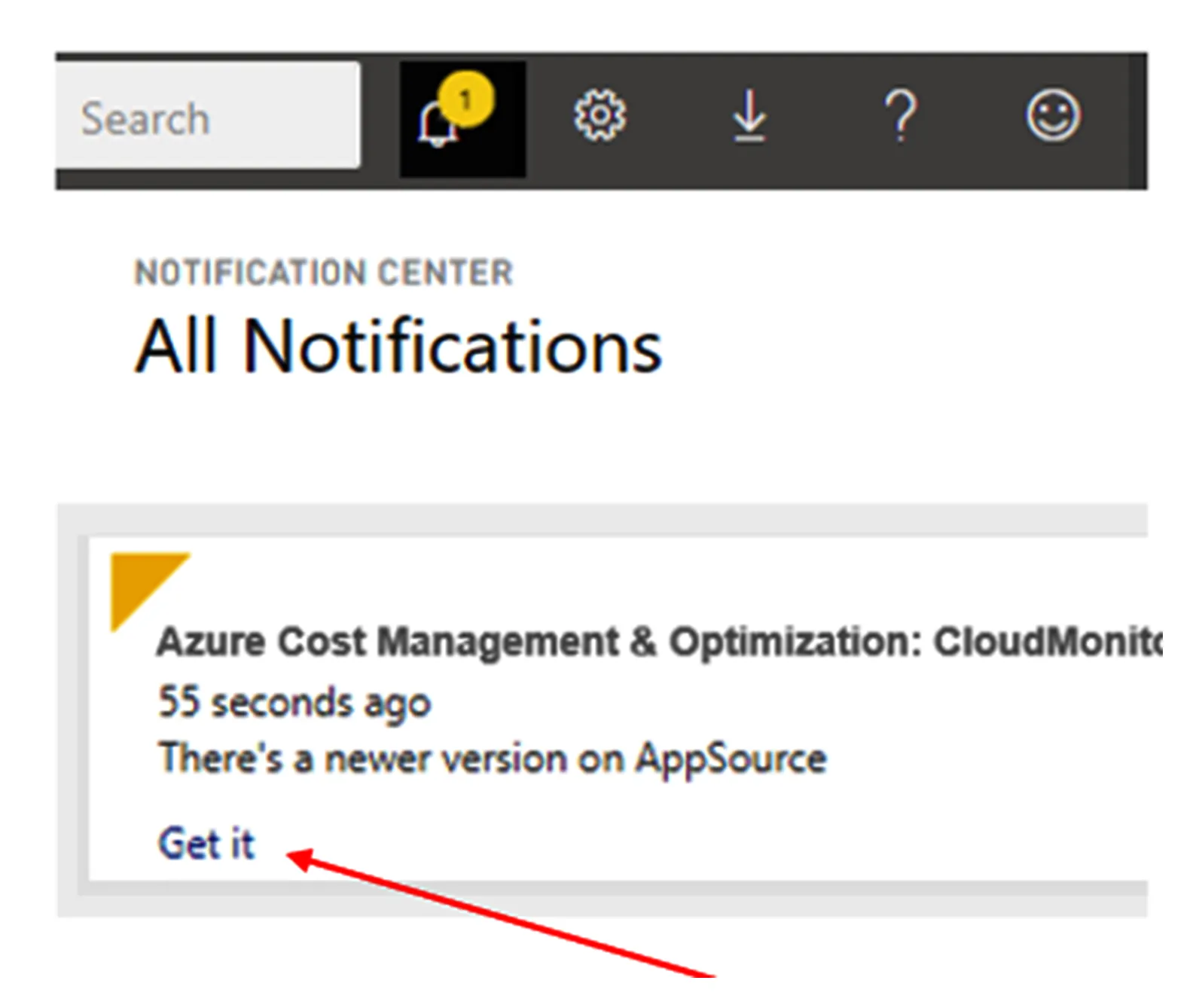
Or click on “Get it now” from the update banner that appears in PowerBI service information that a shows new app version is available.
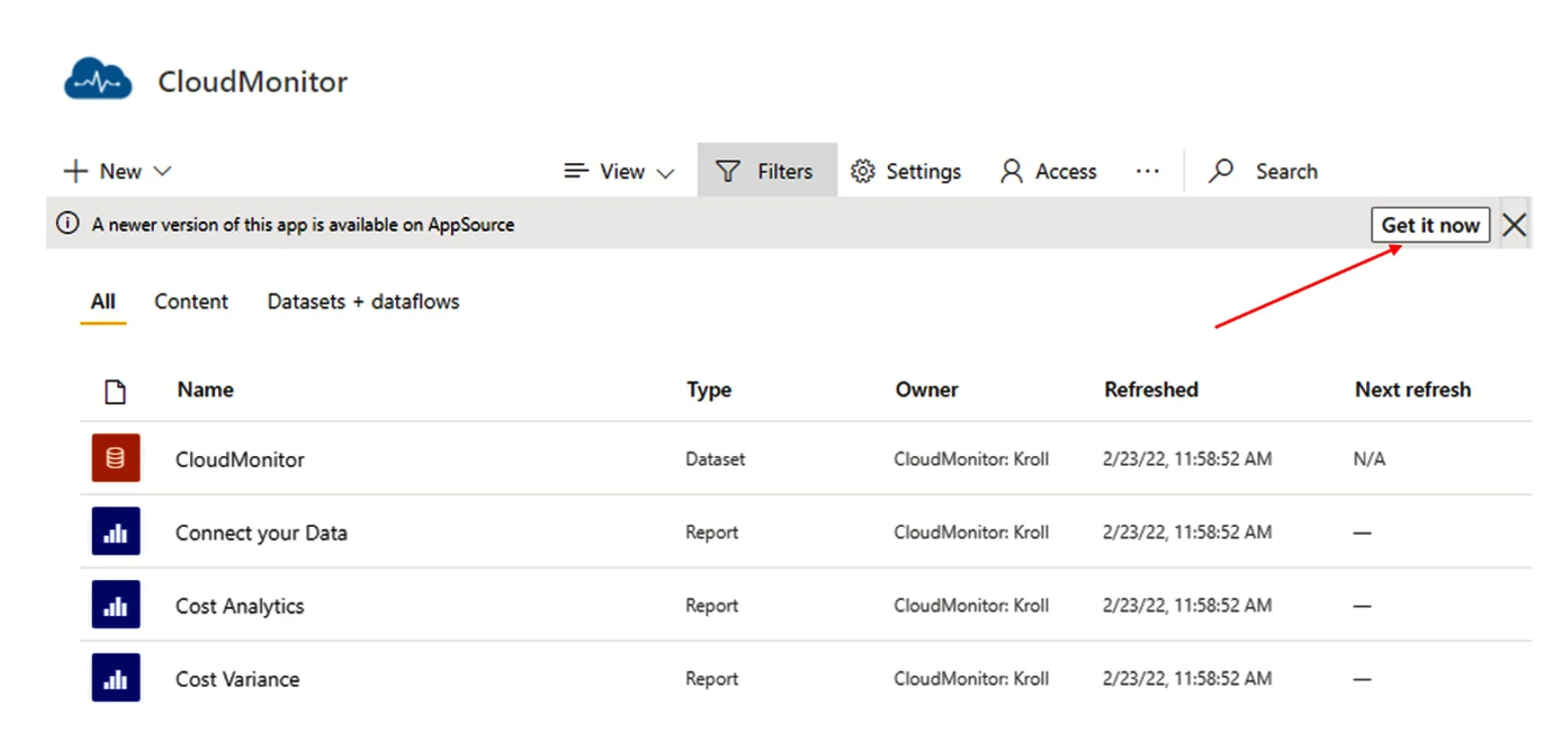
Step 2: Install application to a new workspace
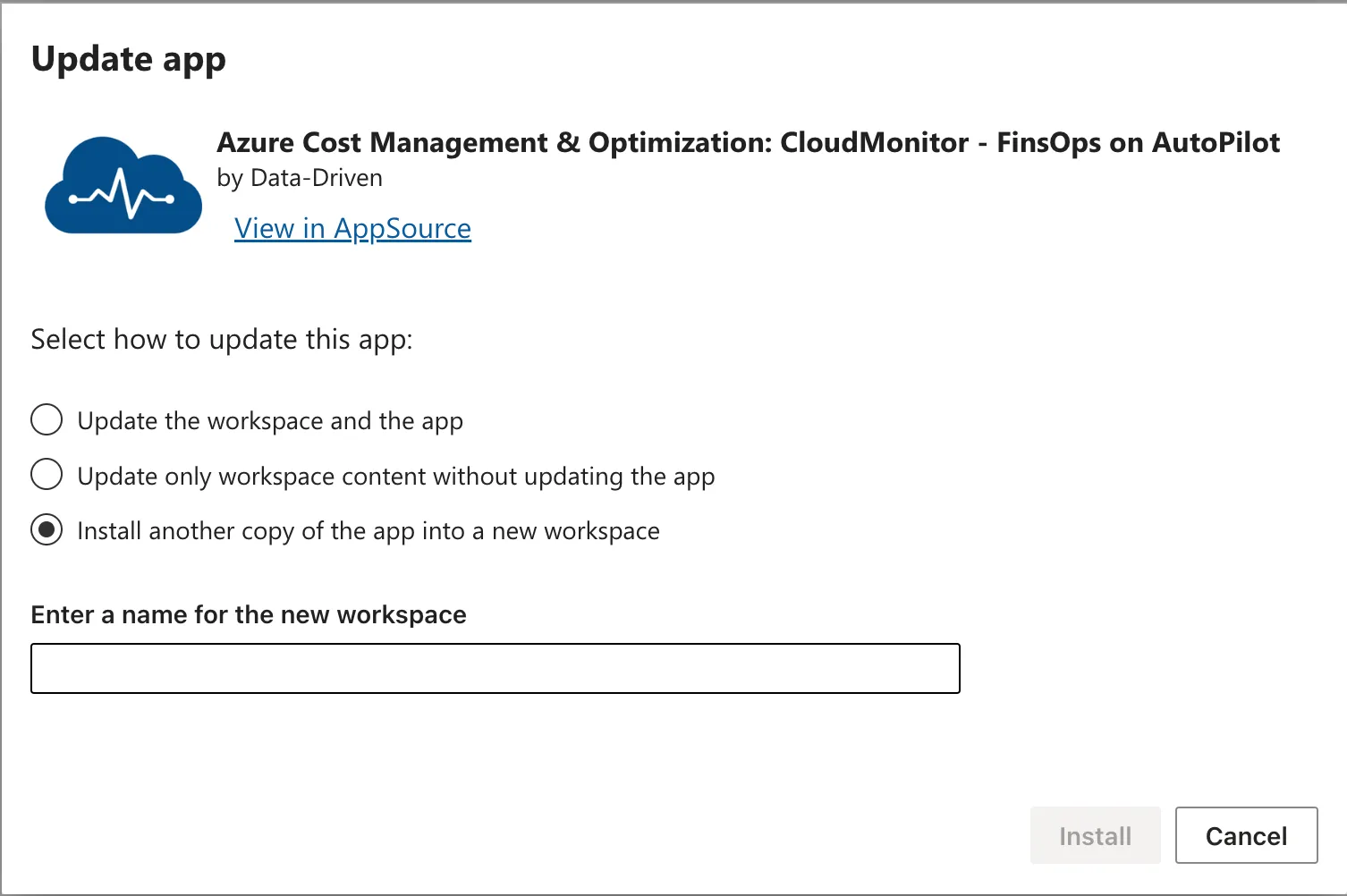
Section titled “Step 2: Install application to a new workspace”Choose the 3rd option to install the application into a new workspace, and provide the name of the new workspace.
Step 3: Connect Power BI to the Analytics Engine
Section titled “Step 3: Connect Power BI to the Analytics Engine”The application will show the below message.

To connect the data, click the Connect your data, and follow this Step 4: Connect the PowerBI Reporting to the Analytics Engine .
Step 4: Delete the workspace with application with old version
Section titled “Step 4: Delete the workspace with application with old version”Make sure to delete the workspace with application with old version since this will also have the same datasets as the new workspace, and it will refresh at the same time as the new installed application.
To delete the workspace, please follow How to Delete Previously Installed CloudMonitor .
Related articles
Section titled “Related articles”****Step 4: Connect the PowerBI Reporting to the Analytics Engine