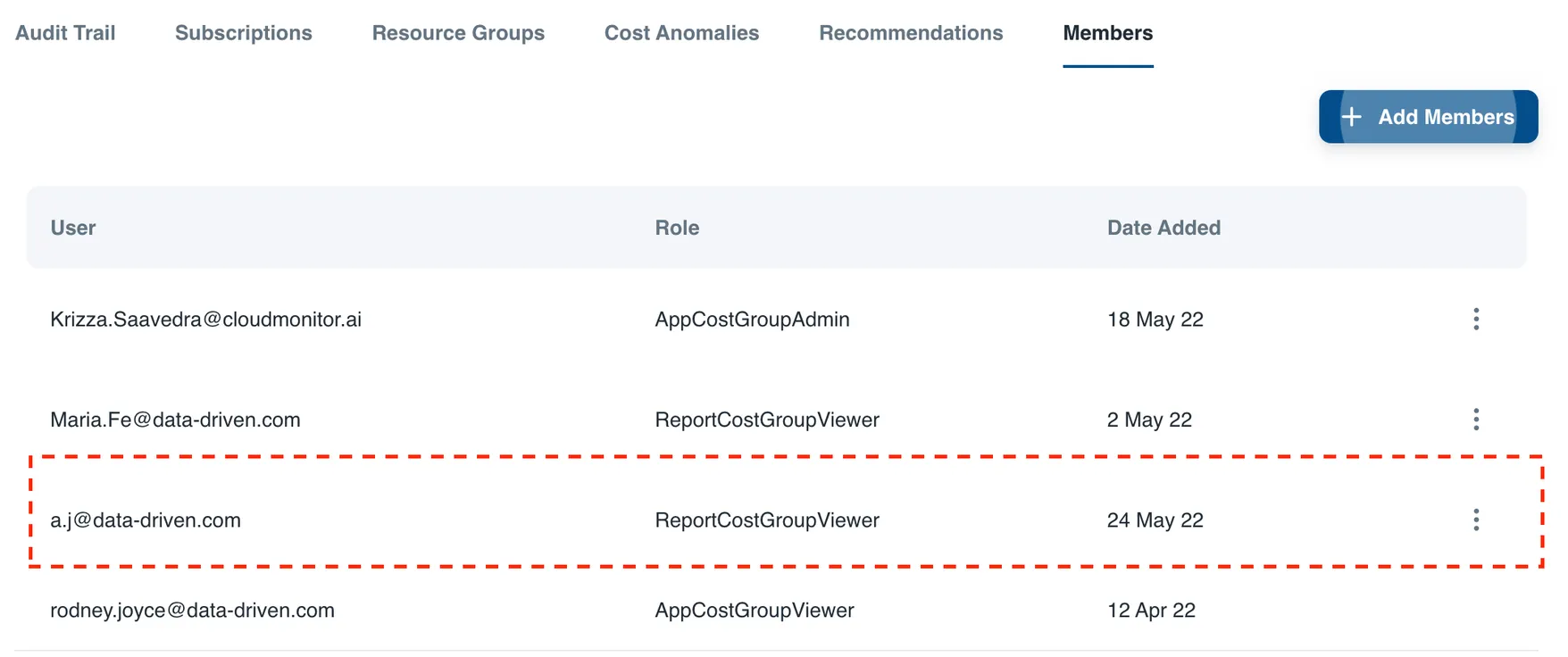
How to add member to a Cost Group?
Login to CloudMonitor Admin App, and go to the Cost Groups.
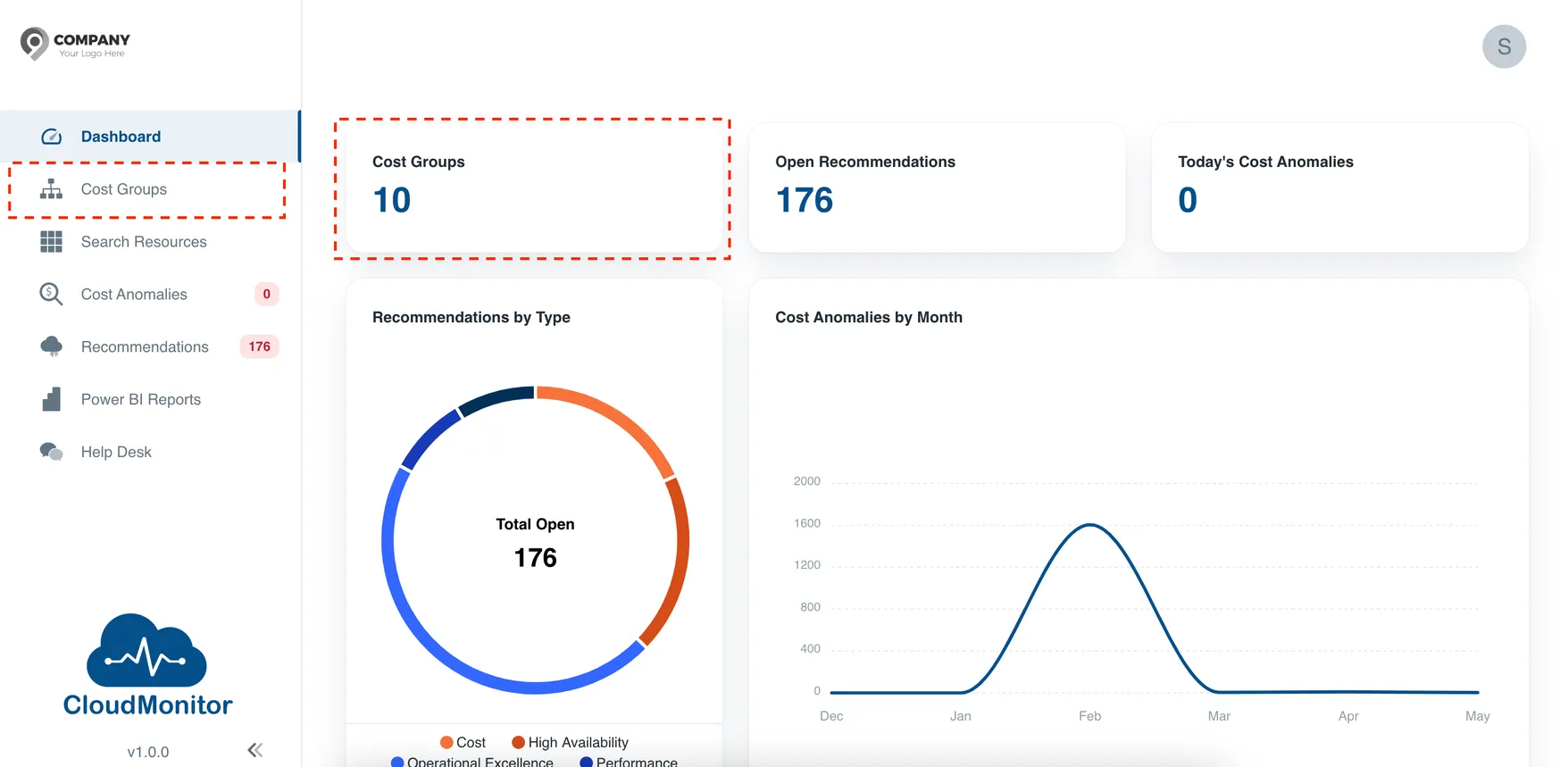
There are two ways to go to the Cost Group Page. First, you can click the Cost Group panel that can be found on the dashboard. Second, you can click the Cost Groups Menu that can be found on the left page.
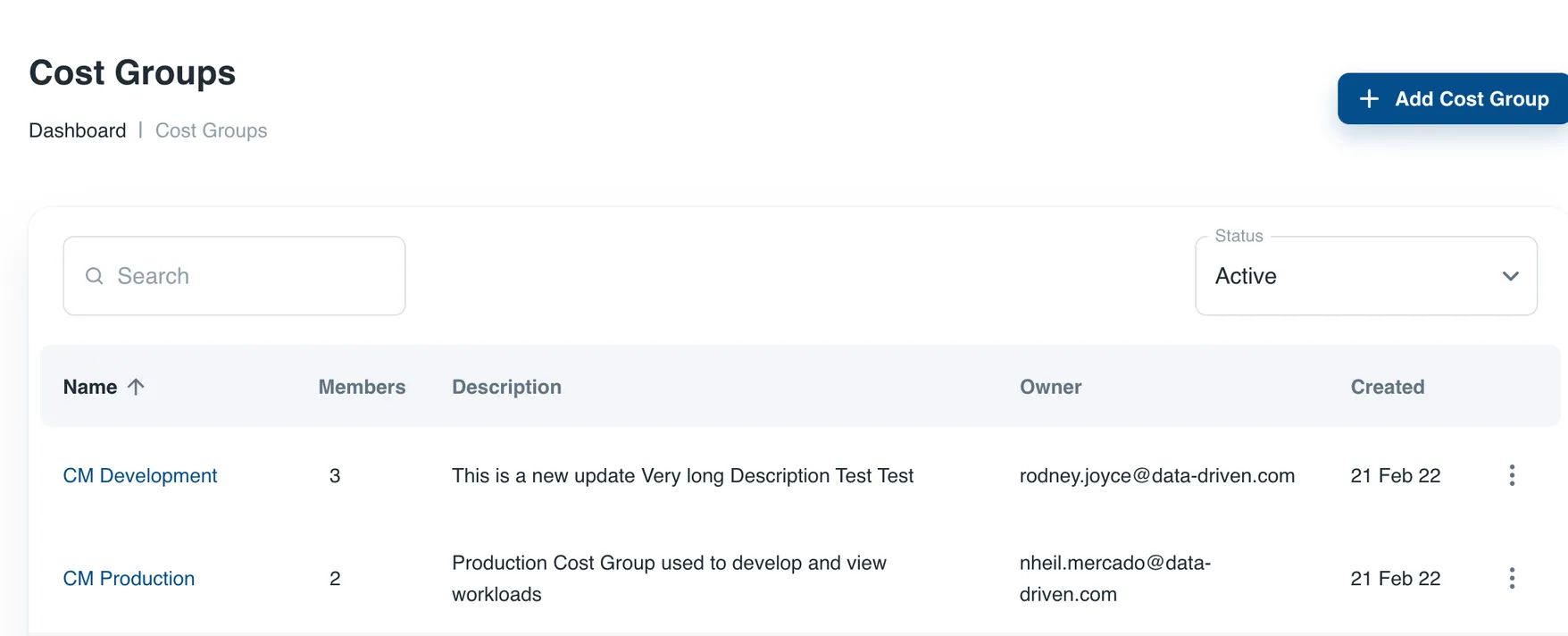
Search the Cost Group where you want to add a member, and click the Cost Group Name.
This will open the Cost Group page where you can find all the details of the Cost Group.
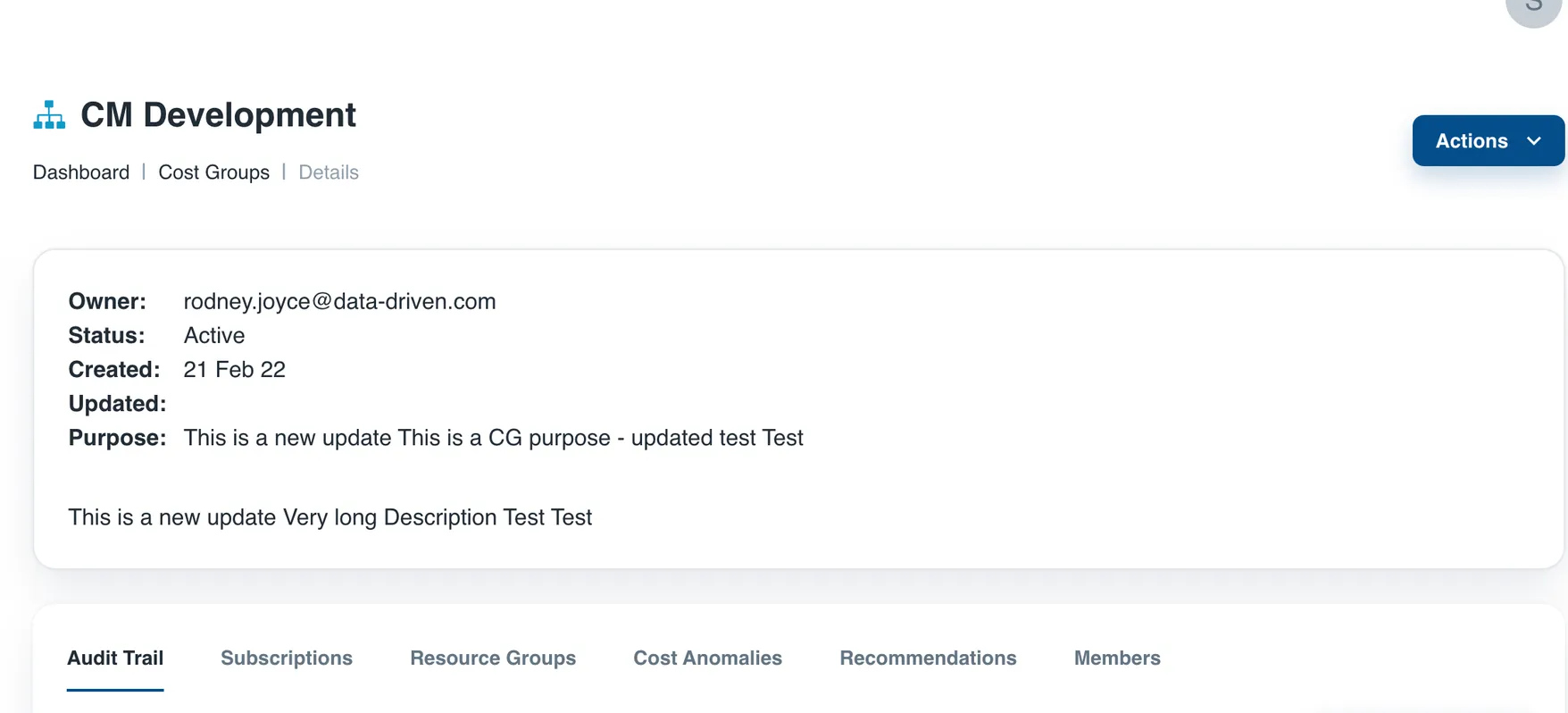
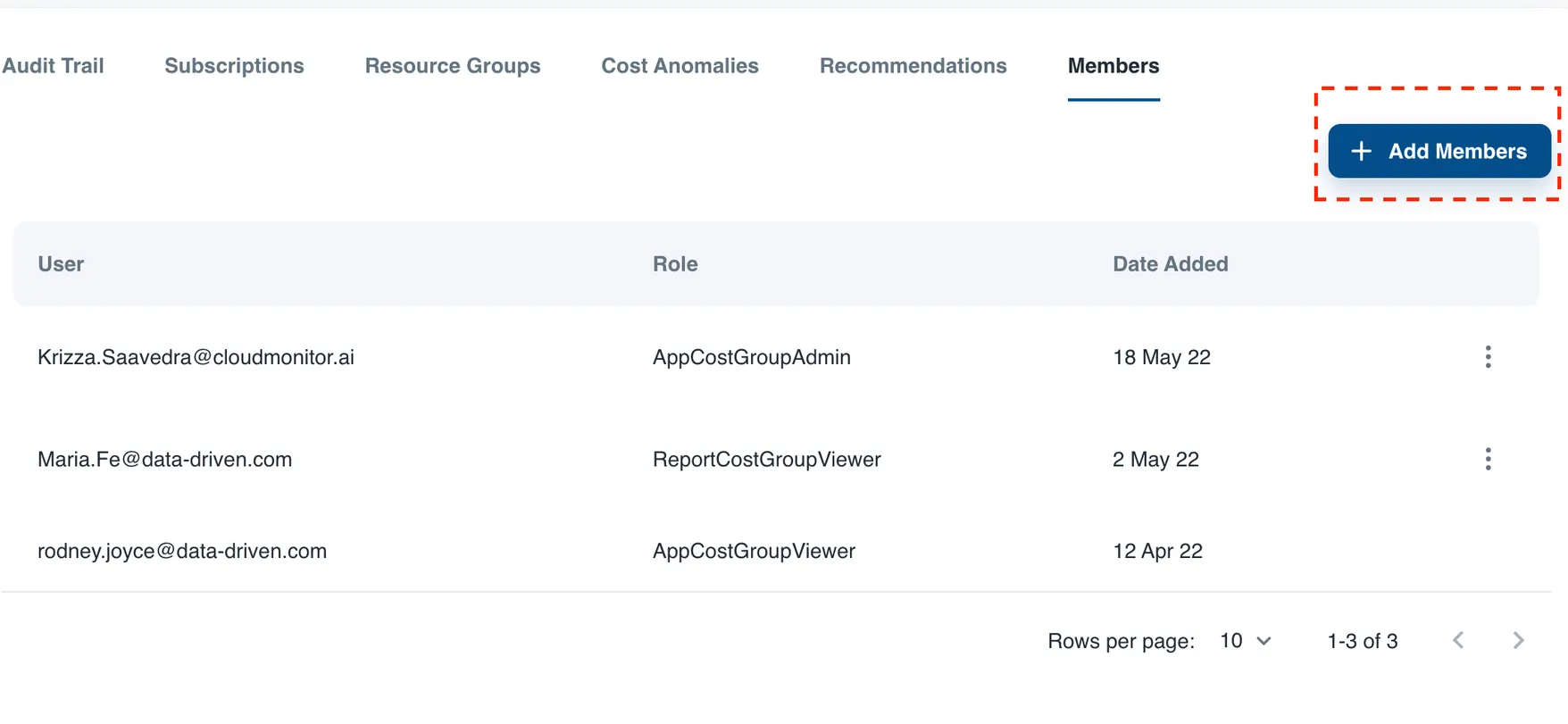
Once, you are in the Cost Group page, go to the Members section where you will find the list of users who already have access to the cost group. To add a member, just click Add Member.
A new window will open where you can find the list of users you can add to the cost group ,and the role that you can assign to them.
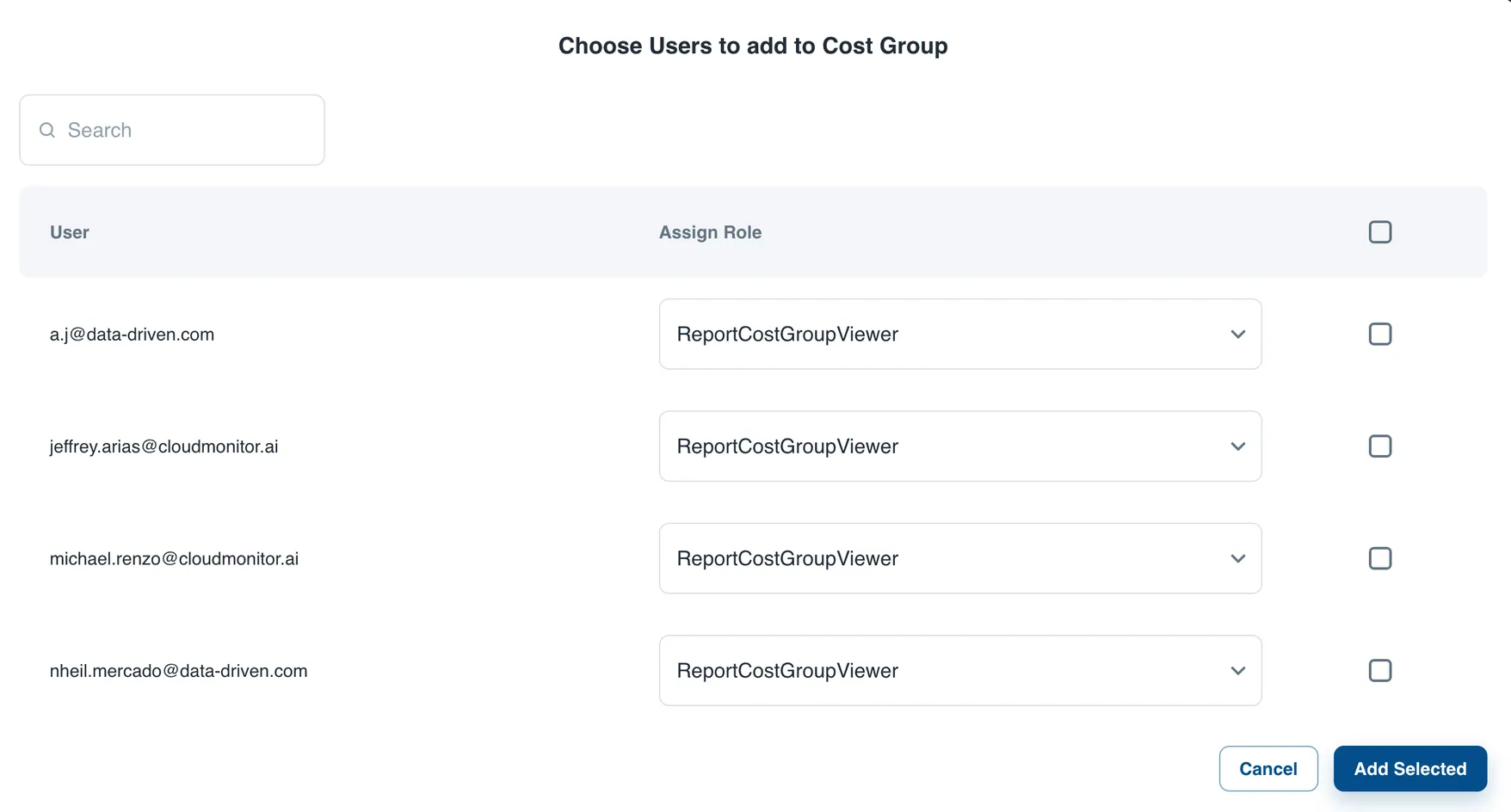
Before adding a user, it is important to know what role should be assigned to the user. Here are the available roles that you can assign to them:
-
ReportCostGroupViewer - user can only view REPORTS
-
AppCostGroupEditor - user can make changes to the Cost Group
-
AppCostGroupAdmin - user can make changes to the Cost Group, and edit Cost Group information.
-
AppCostGroupViewer - user can only view the application, but not the reports.
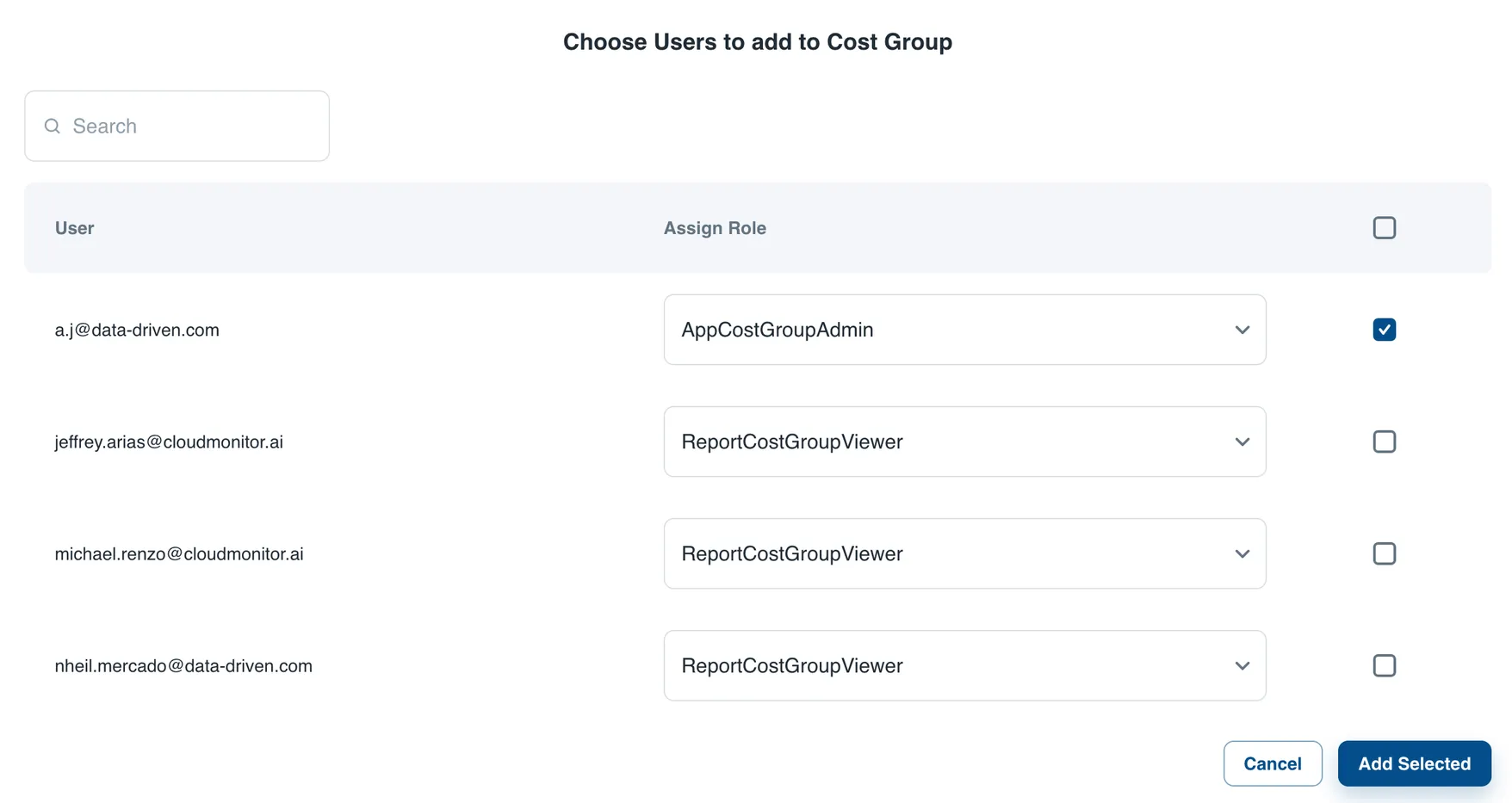
To add a member, search the user from the list or use the search box. Once you have found the user, assign a role, and tick the check box. Then, click the Add Selected button.
You can add users simultaneously by ticking the checkbox on the right side.
A message will be displayed after successfully adding the user to the cost group.
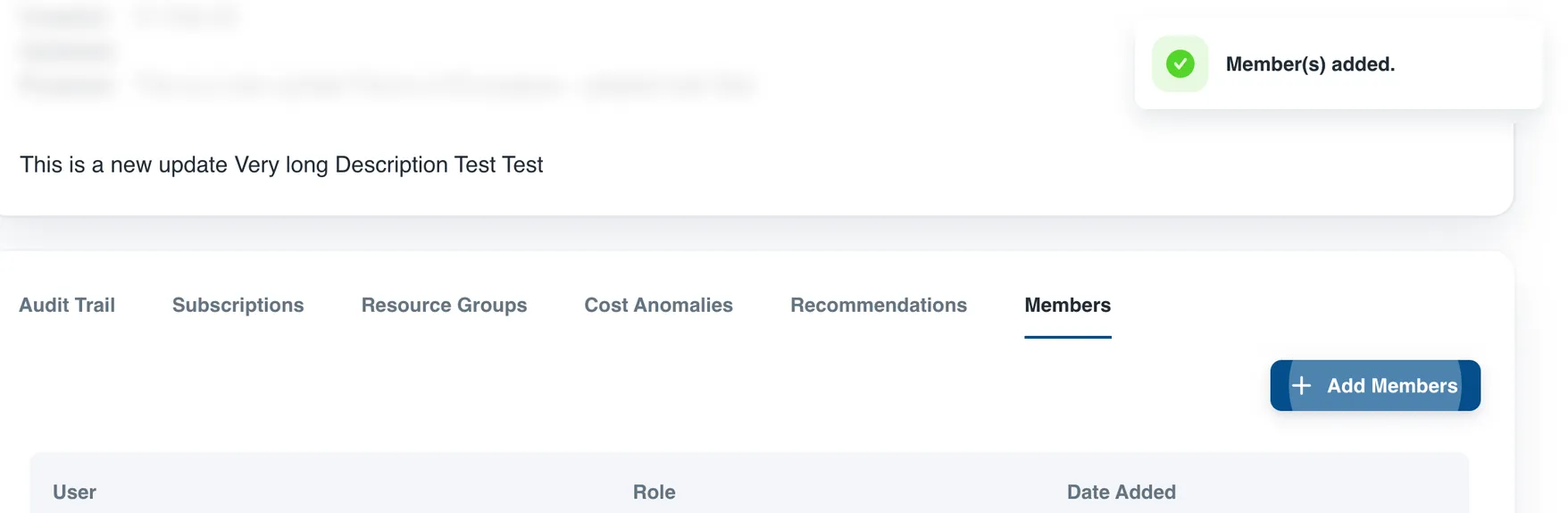
You can also verify if the user is added, if you can see it in the Members section.