Upgrade Power BI to the latest version
CloudMonitor latest version requires SQL Server and Storage Account credentials. If you haven’t got your latest credentials please submit a ticket or reach out to support@cloudmonitor.ai.
From time to time, CloudMonitor admin releases a new and improved version of the template app via AppSource.
Find Out the Current Version of Power BI for CloudMonitor
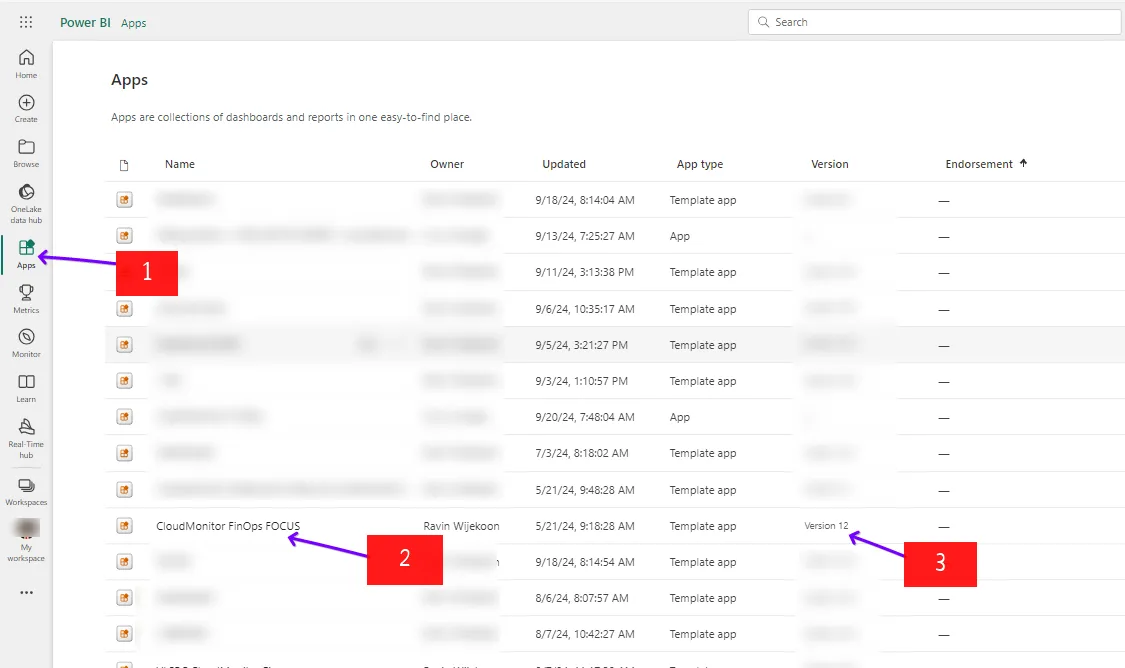
Section titled “Find Out the Current Version of Power BI for CloudMonitor”To find the current version of the CloudMonitor Power BI app, go to your tenant’s Power BI portal and follow these steps:
- Click on the “Apps” icon in the left-hand menu.
- Locate the CloudMonitor Power BI app from the list of installed apps.
- Check the version in the “Version” column. Please note that it might take a moment for the version information to load.
Updating the latest version of Power BI
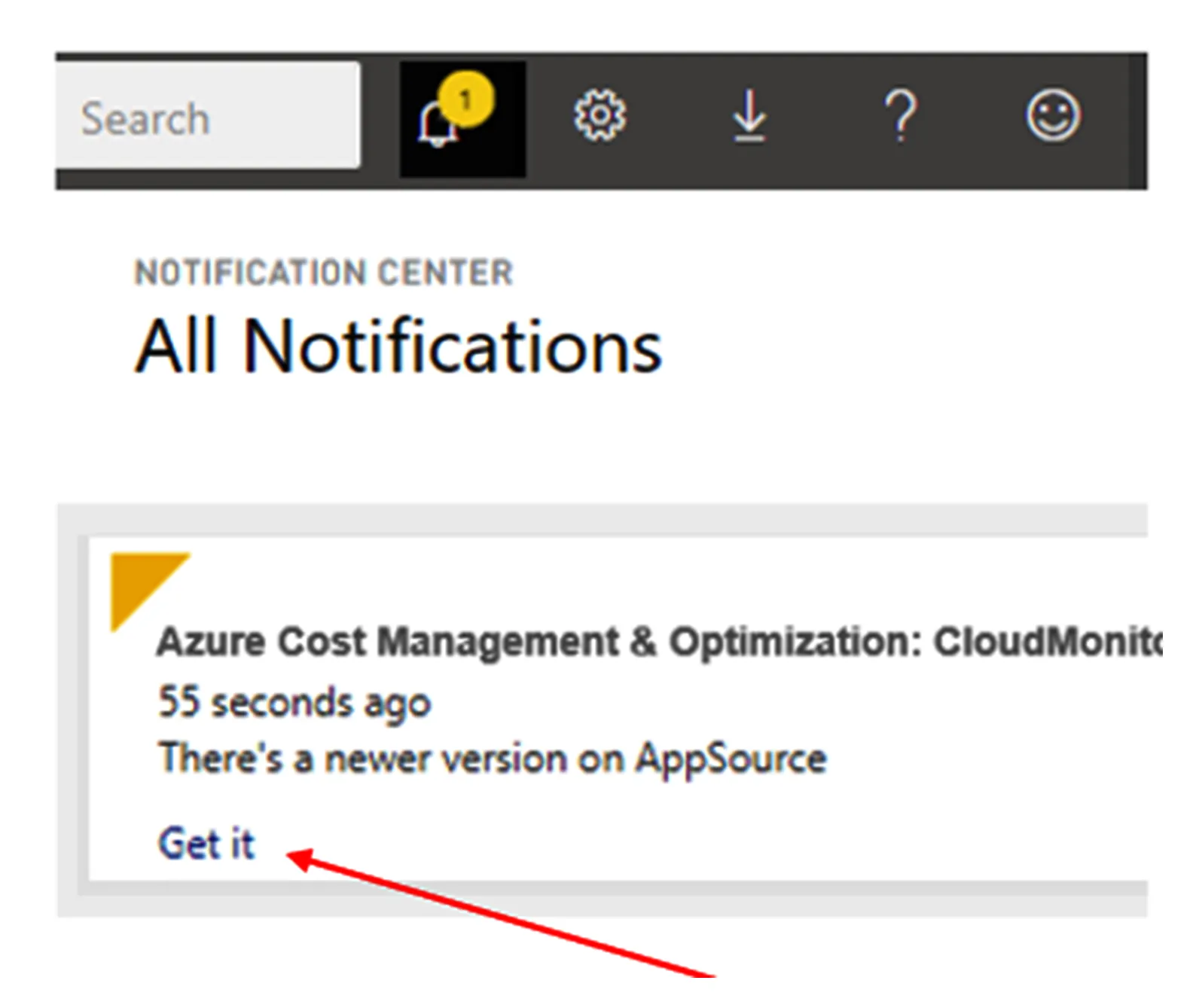
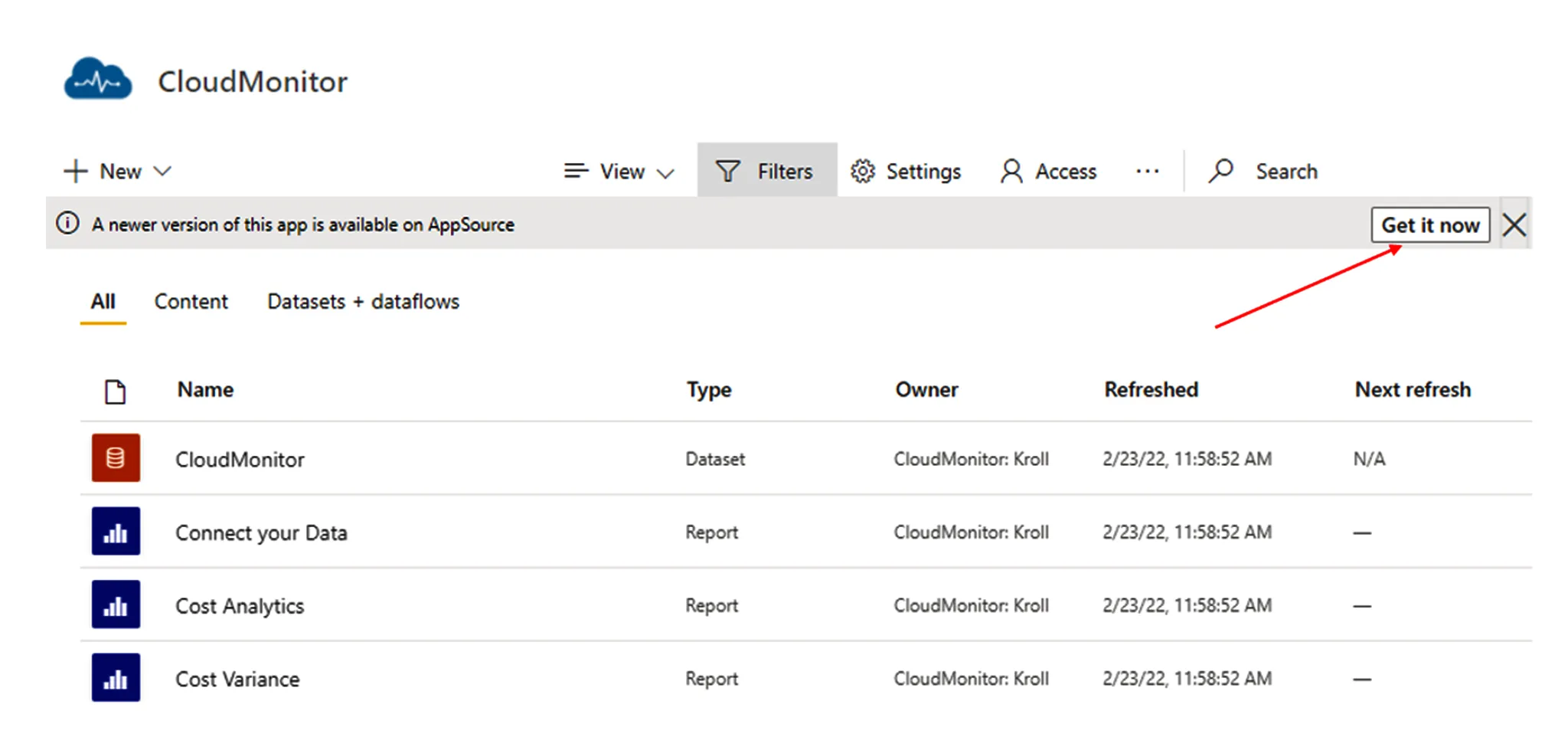
Section titled “Updating the latest version of Power BI”To install the update, either Get it on the notification banner or in the workspace notification center or find the app again in the AppSource and choose Get it now.
Important: Updating the app will keep the configured parameters and authentication. However, you need to refresh your dataset from the workspace to reestablished the connection or you can reconnect your dataset using the app.
Step 1: Updating from the notification banner in PowerBI’s notification pane
Section titled “Step 1: Updating from the notification banner in PowerBI’s notification pane”To install the latest version, from the notification center, just click on “Get it”:
Or click on “Get it now” from the update banner that appears in PowerBI service information that a shows new app version is available.
Step 2: Select how to update the app
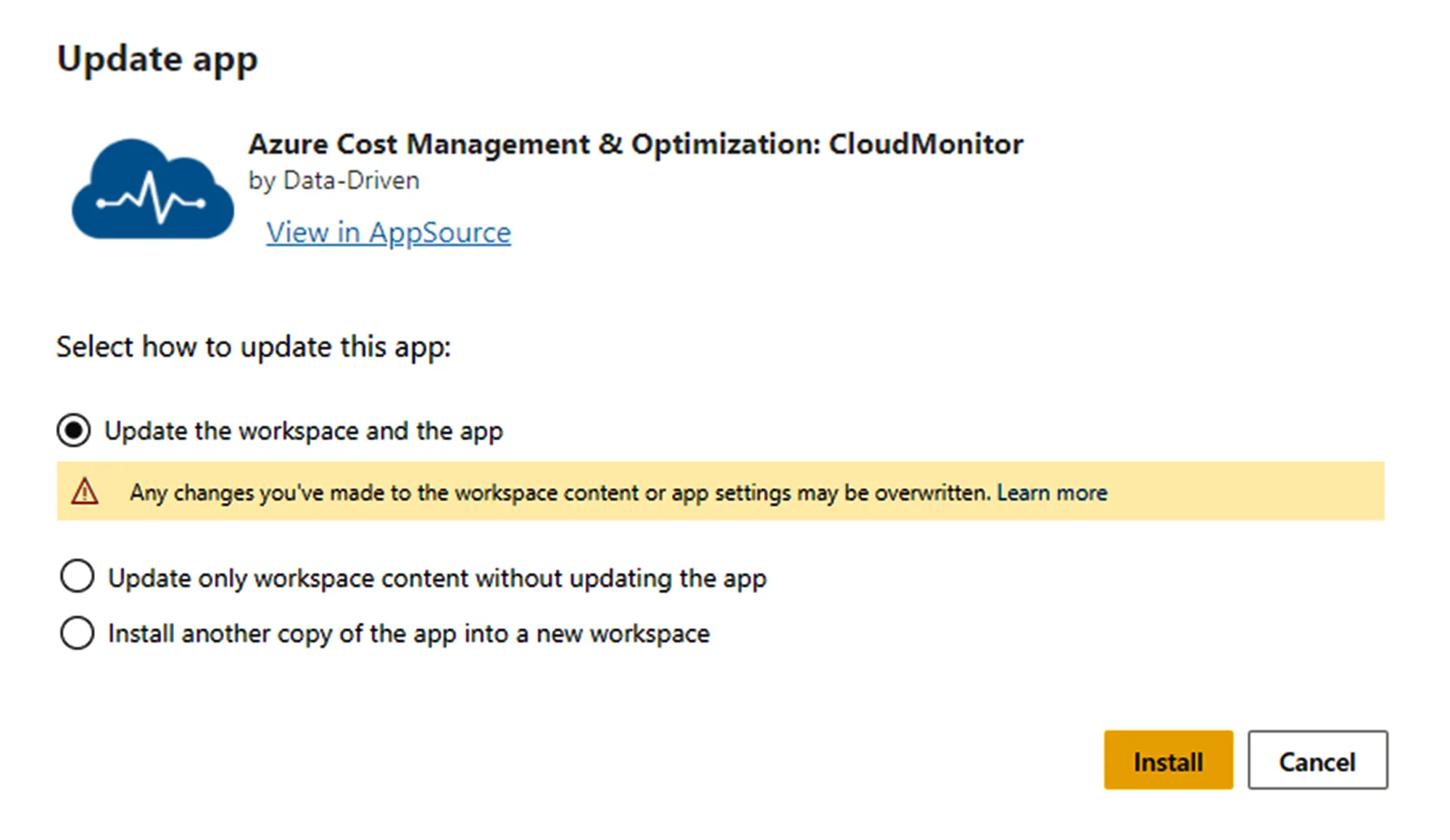
Section titled “Step 2: Select how to update the app”You will be asked how you want the update to affect your current installed app.
We highly advised selecting the 1st option which will update both workspace and the application and will republish the app to your organization. The new version of the app will include an updated app branding, app name, logo, and navigation as well as the latest publisher improvements to content.
If you receive the message “Couldn’t overwrite the app”, please follow How to Resolve “Couldn’t Overwrite the app” when Upgrading Power BI to the Latest Version
Step 3: Refresh your CloudMonitor Dataset
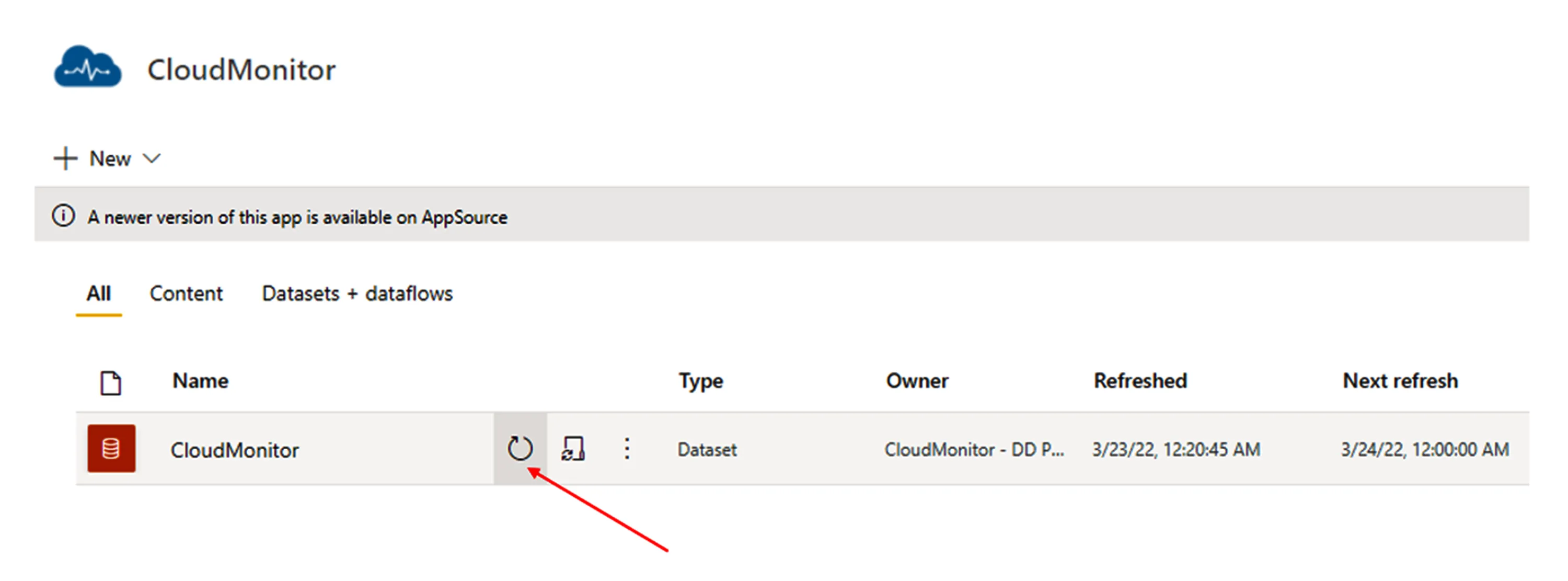
Section titled “Step 3: Refresh your CloudMonitor Dataset”Once your app has been updated, you have to refresh your CloudMonitor Dataset to re-establish the connection (only if you already entered SQL Server and Storage Account from previous updates) or you can reconnect your dataset using the app.
Related articles
Section titled “Related articles”Step 4: Connect the PowerBI Reporting to the Analytics Engine