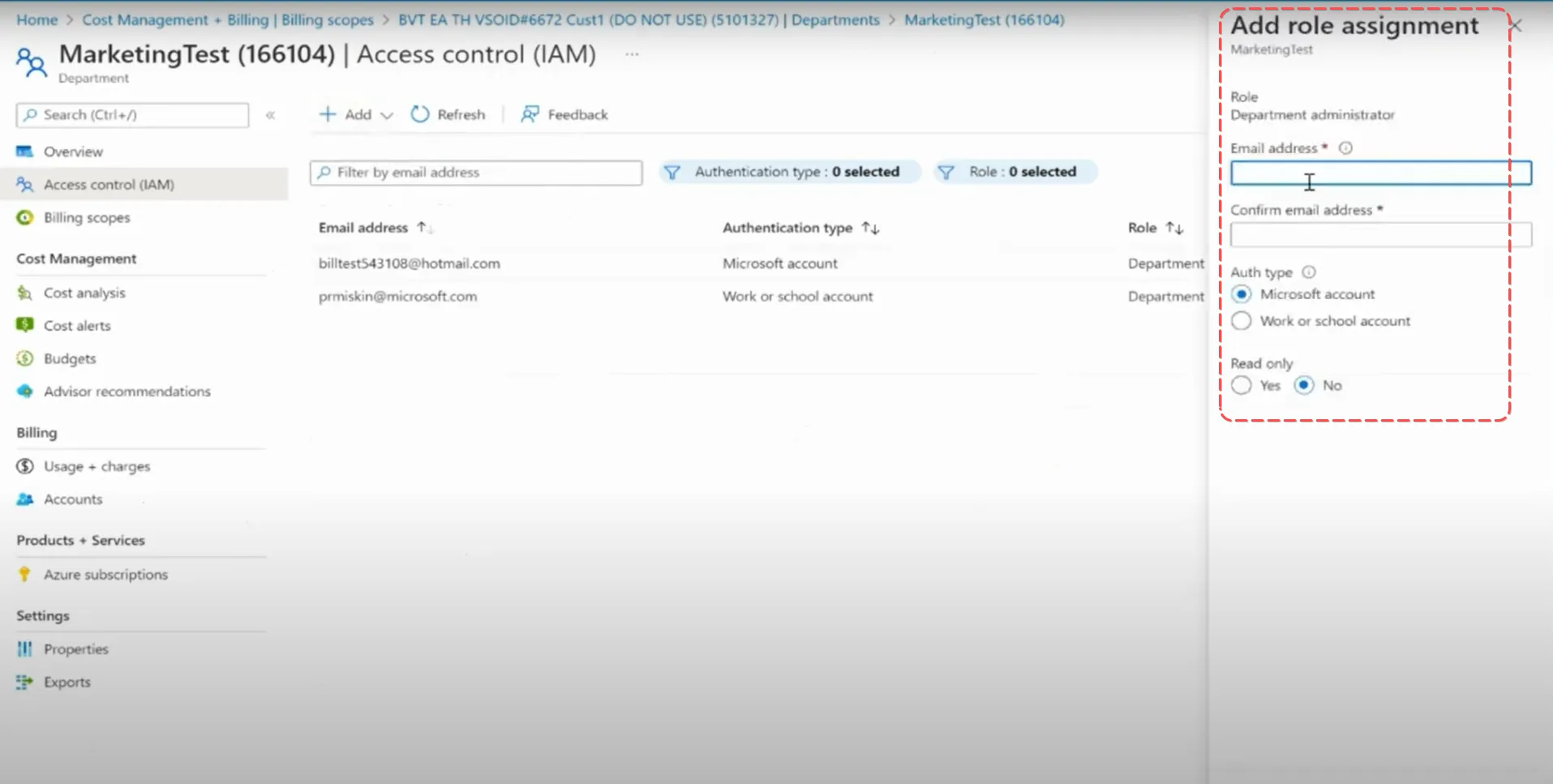
Assign EA roles as Enterprise Administrator
Follow these steps to assign different roles as an Enterprise Administrator for Enterprise Agreement customers.
1. Go to ” Cost Management + Billing” in your Azure Portal
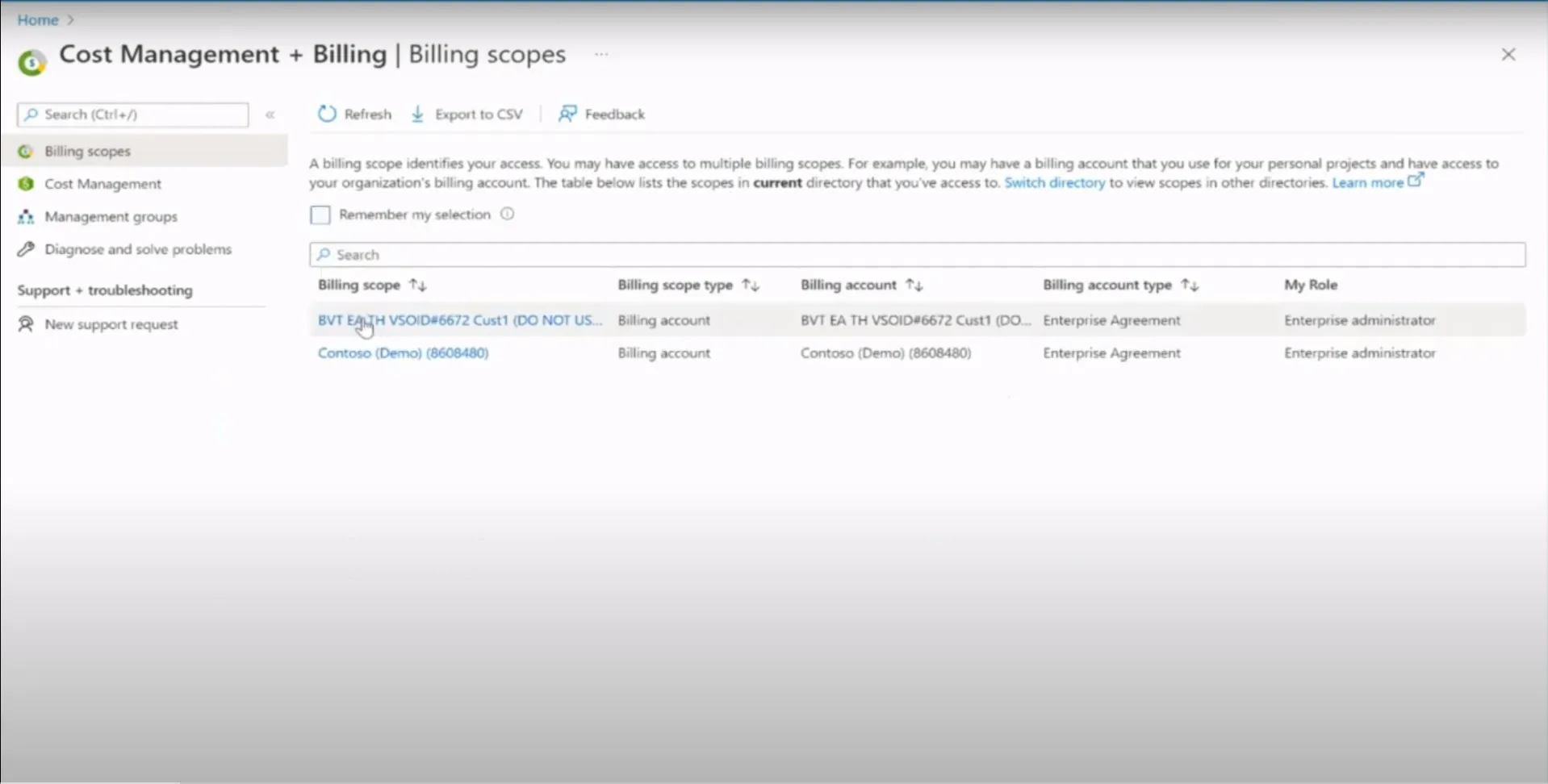
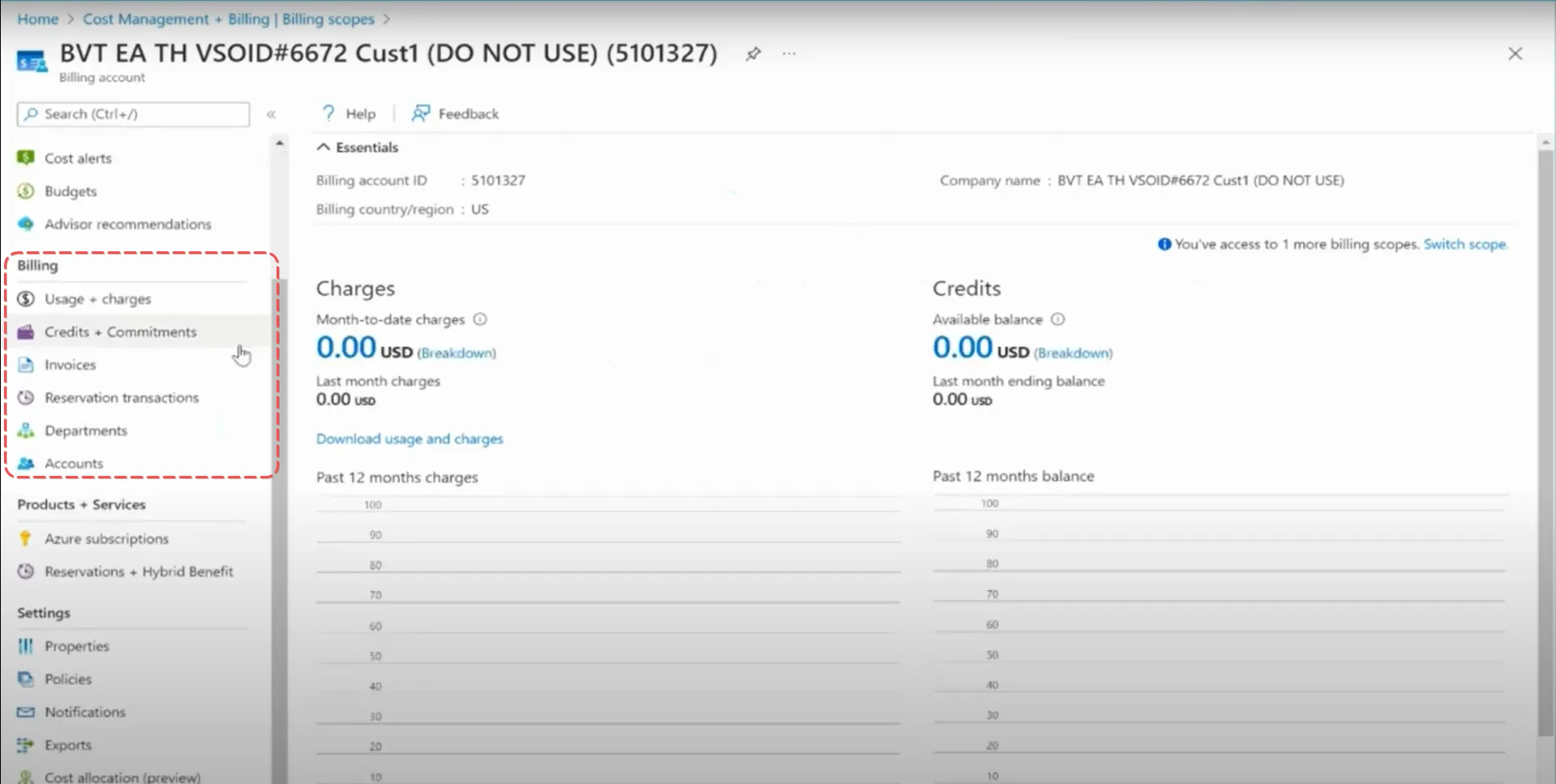
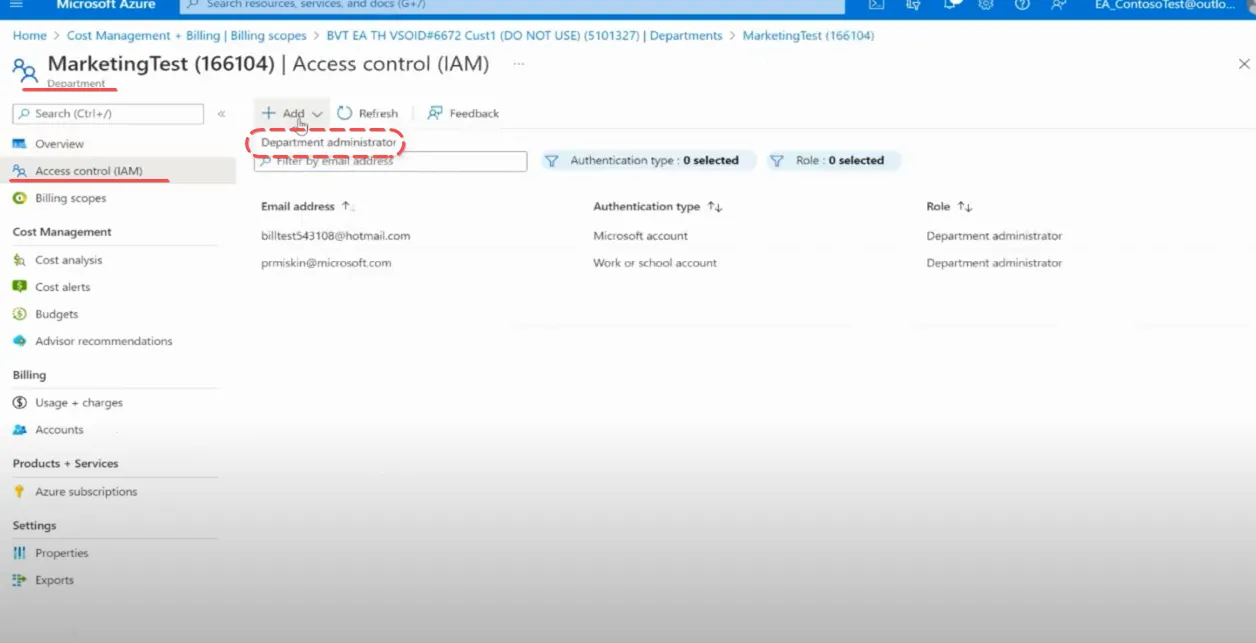
2. Select and click on the Department or Account on the menu on the left.
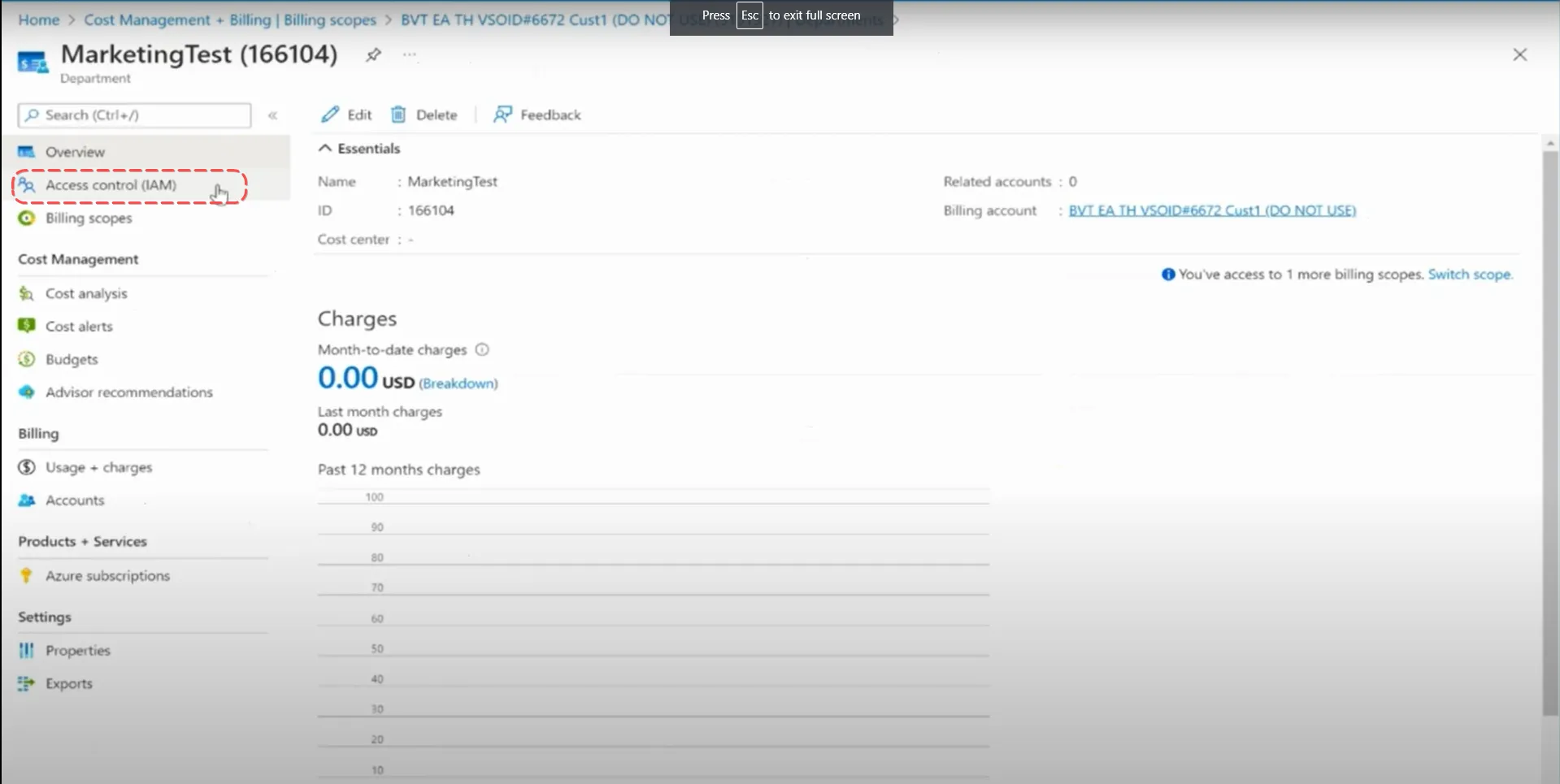
3. Go to ” Access control (IAM)”
4. Click on ”+ Add” to add either a “Department administrator” role for Departments or a “Account owner” role for Accounts.
5. Enter an Email address, select Auth type and Read only access and add new role.